


- •To import existing wallets into Rabby, you must have either your secret recovery phrase or your private key.
- •Rabby wallet supports unlimited wallets, but always back up each wallet to prevent loss.
- •When importing, you can select additional options, such as a private key or ledger wallet, if applicable.
If you ever want to consolidate your EVM accounts spread across multiple wallets into Rabby Wallet but don’t know how, you’re in luck. Rabby Wallet enables users to import an existing setup in minutes, providing continued security, convenience, and an all-in-one wallet experience. This migration into Rabby doesn’t affect your funds, assets, or DeFi activities. In this guide, we’ll explain how to import existing wallet to Rabby Wallet for smoother multi-wallet navigation within a single platform.
Steps to Import Existing Wallet to Rabby Wallet
If you’re migrating from a self-custodial wallet, ensure you have the seed phrase ready before proceeding. Additionally, Rabby wallet supports other import methods, like private keys and ledgers. This section provides a detailed guide on how you can easily import an existing wallet to the Rabby Wallet browser extension and mobile application.
Browser Extension
Here’s a step-by-step guide to importing an existing wallet to Rabby Wallet if you’re using the wallet’s extension:
Step 1: If you have a wallet logged in to the Rabby Wallet extension before, open and log in to it.
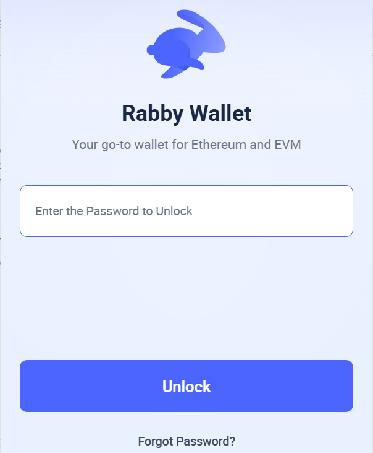
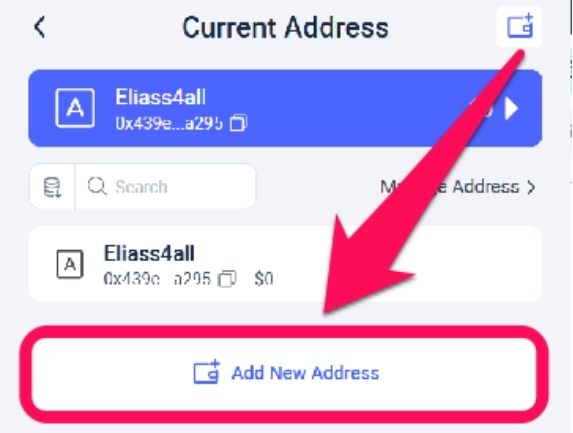
Step 2: Click the Account Selector icon to see all the accounts associated with the wallet.
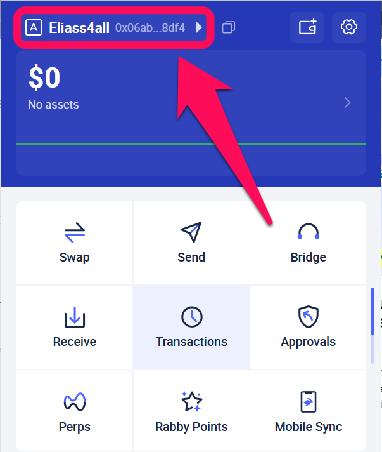
Step 3: Select “Add New Address” to import an existing wallet.
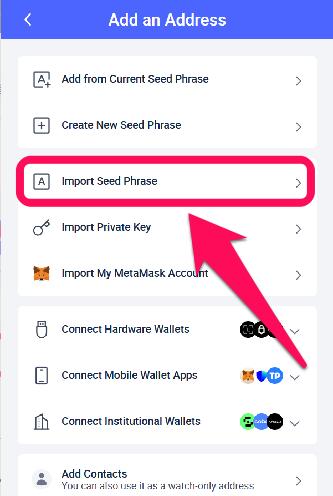
Step 4: Select the method you prefer to use for adding an address. For this guide, we’ll select Import Seed Phrase.
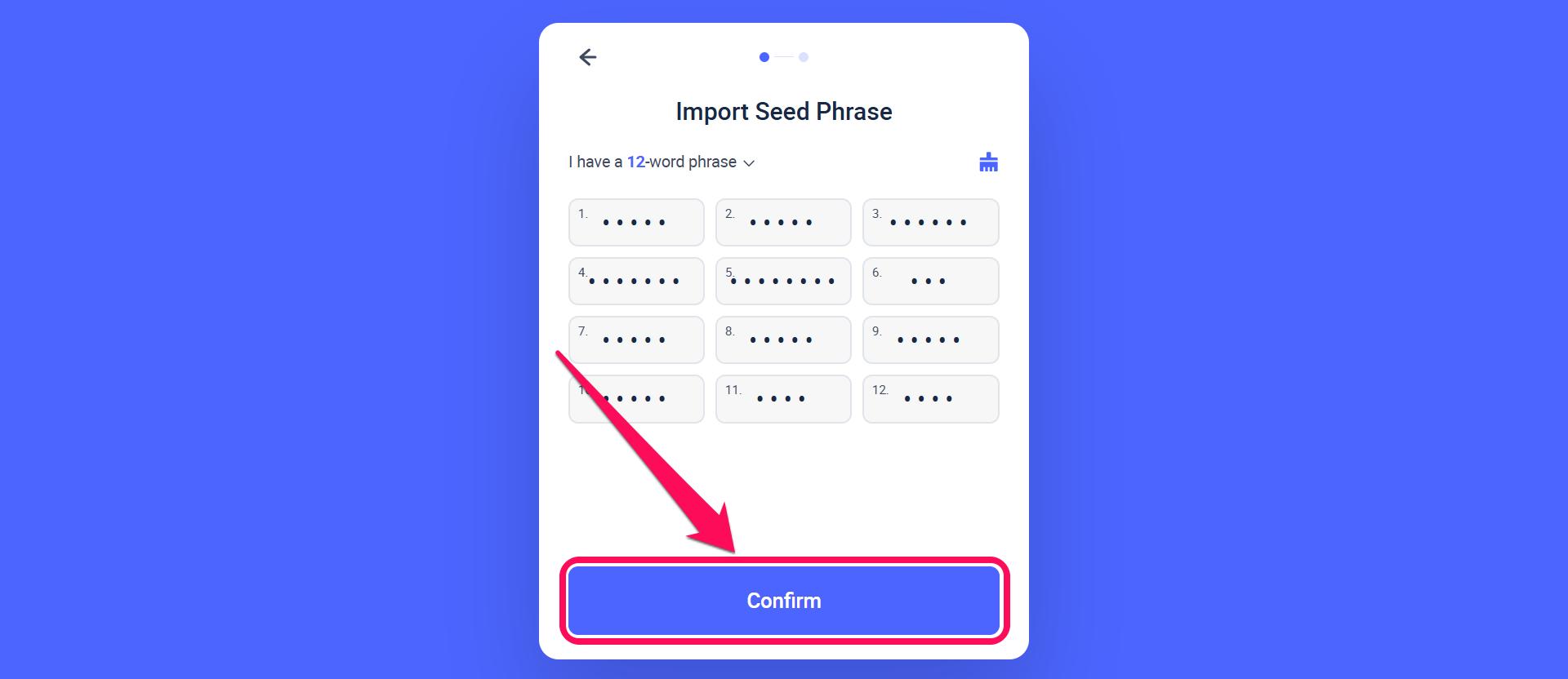
Step 5: Carefully enter your 12-word secret recovery phrase in lowercase on the page that pops up and click Confirm to detect the wallet linked to the phrase.
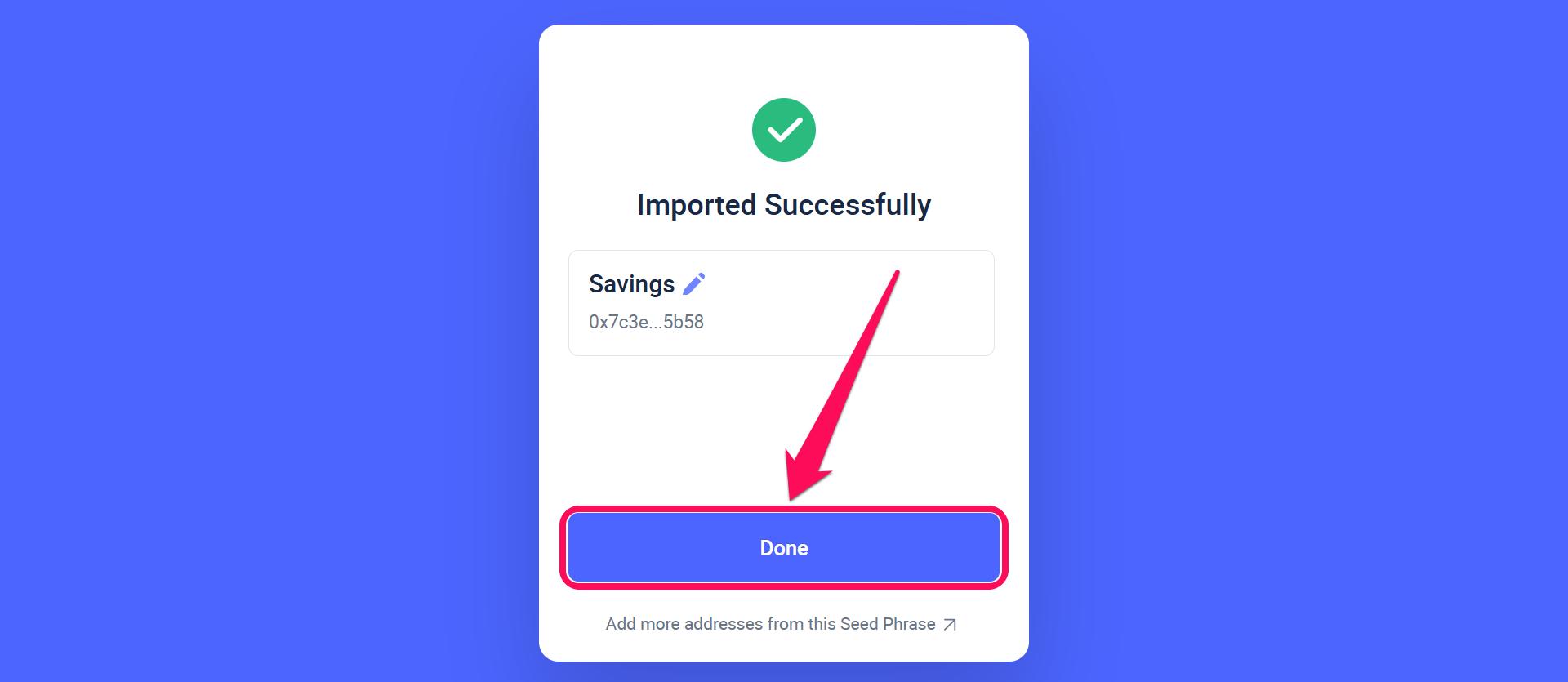
Step 6: Next, you’ll get a successful message. Click the pen icon next to the wallet to rename it, and then click Done to view your imported wallet.
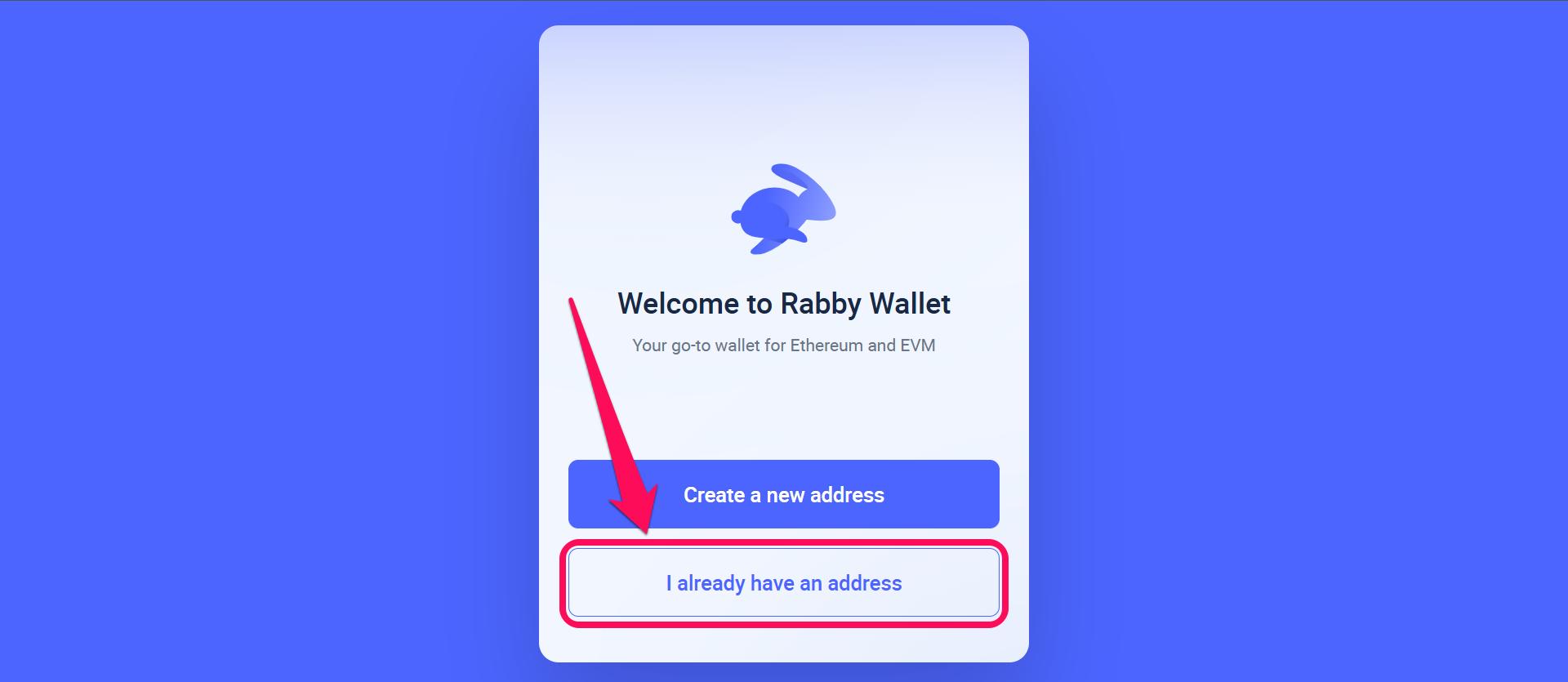
Step 7: Click I already have an address to import your wallet to Rabby Wallet.
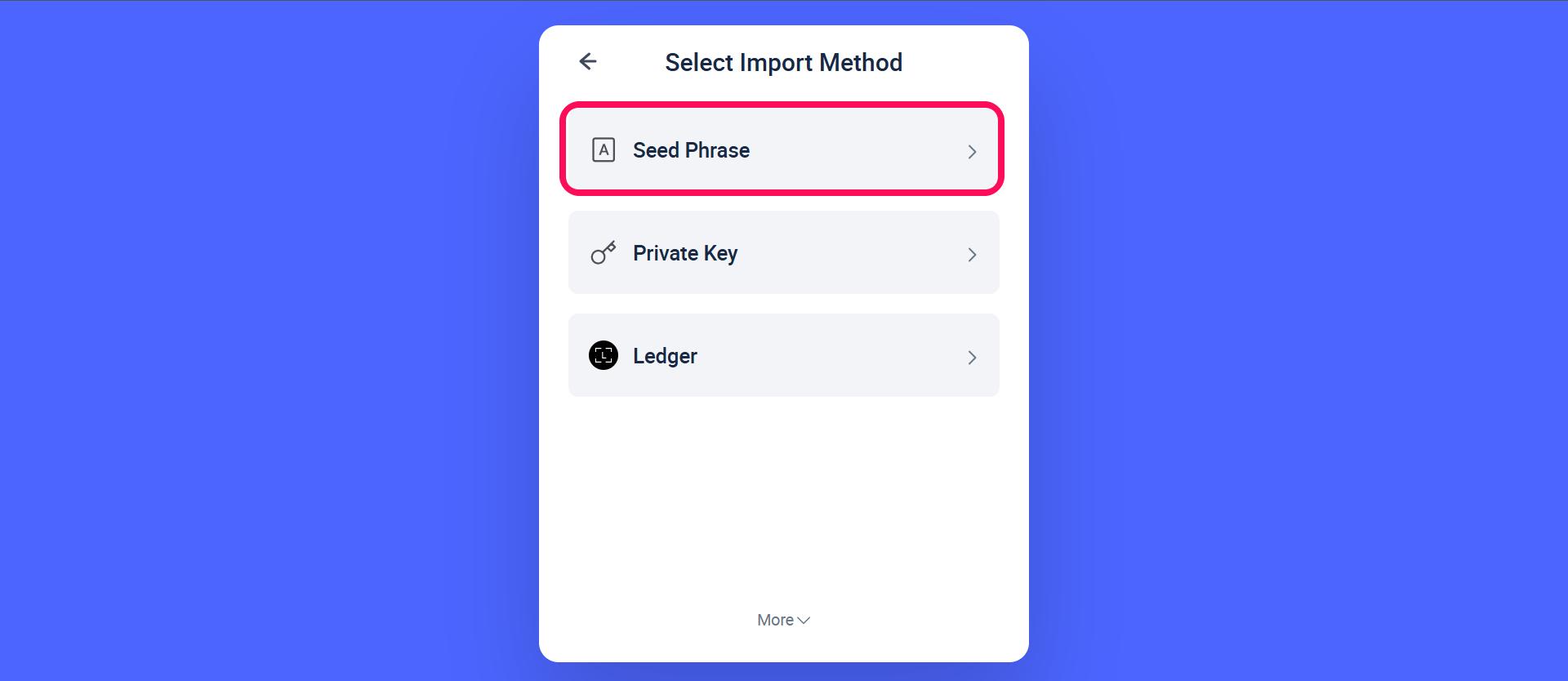
Step 8: Select your preferred import methods (seed phrase, private key, or ledger).
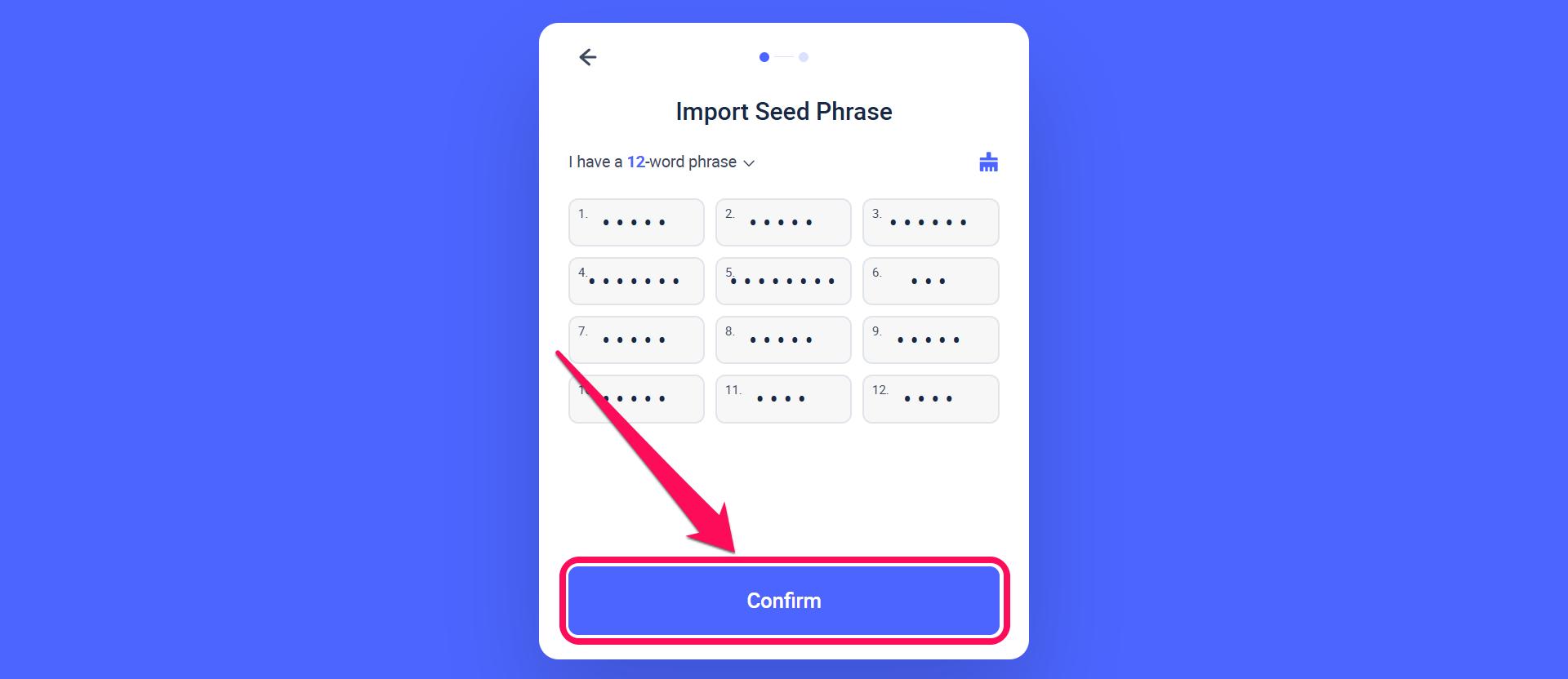
Step 9: If you selected the seed phrase, enter your 12-word recovery phrase to find and restore your existing Rabby account.
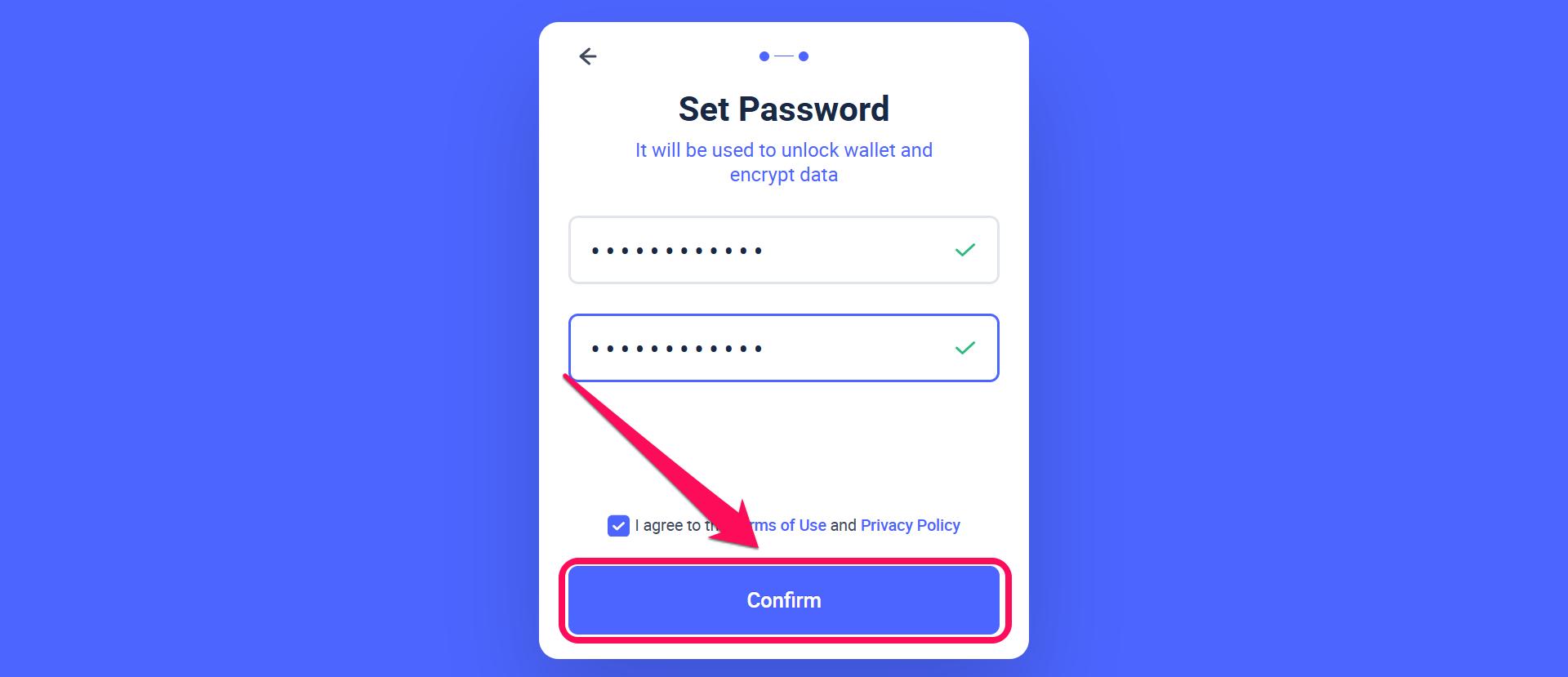
Step 10: Create a password to lock and encrypt your local data on the Rabby extension. If you ever forget or want to update your password, check out our guide to changing your Rabby wallet password.
Mobile App
Below are the steps to take if you want to import an existing wallet to Rabby Wallet using the mobile app:
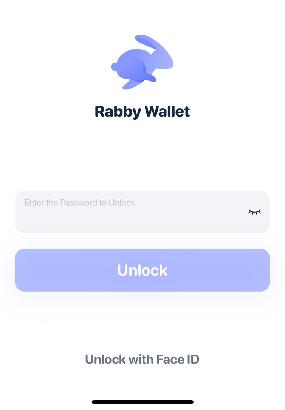
Step 1: If you have a wallet logged in and want to import an extra existing wallet, open your wallet app to access your account.
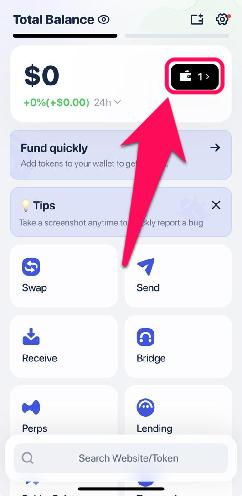
Step 2: Click the wallet icon to open the account selector field.
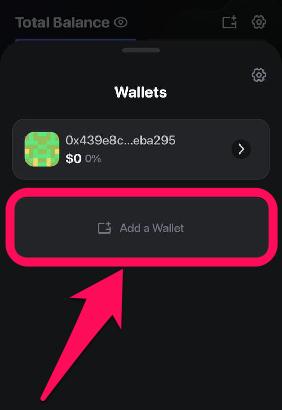
Step 3: Tap on “Add a Wallet” option to import an existing wallet.
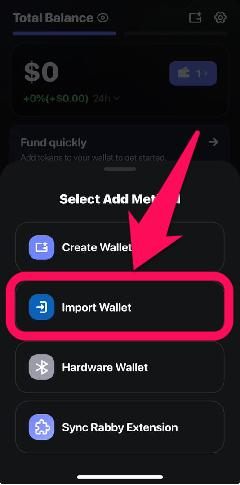
Step 4: Select Import Wallet.
Step 5: Select the import method; we’ll choose Import Seed Phrase for this guide. Input your seed phrase and click Done to start using your newly imported wallet.
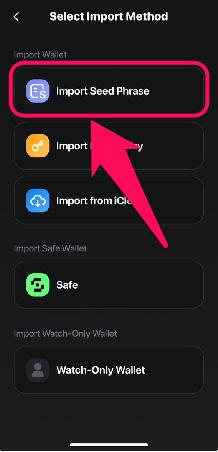
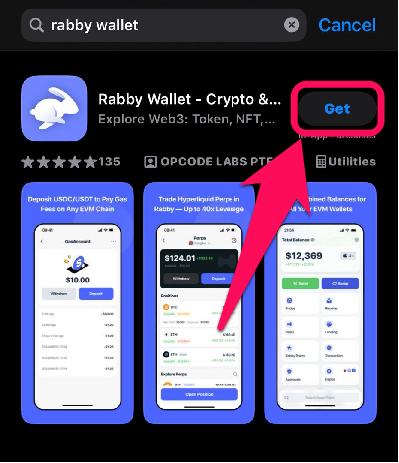
Step 6: Alternatively, download the Rabby wallet mobile app to get started.
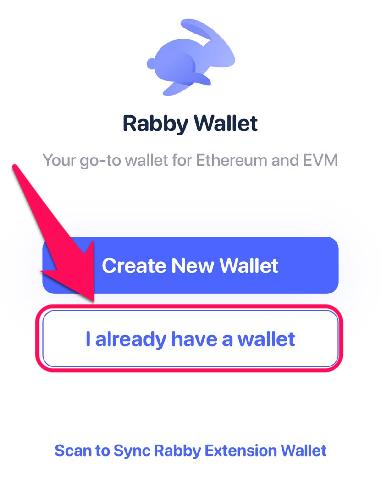
Step 7: Select I already have a address from the list of options on the welcome page.
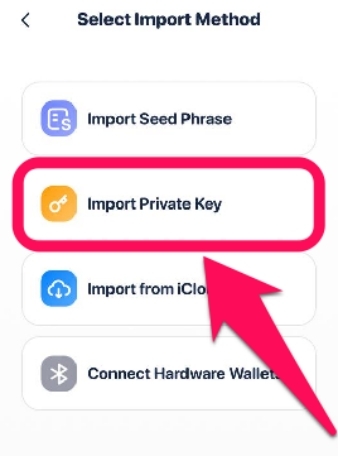
Step 8: Choose your preferred import method; you can either enter your account’s seed phrase, import a private key, or connect a hardware wallet, such as Ledger or Keystone.
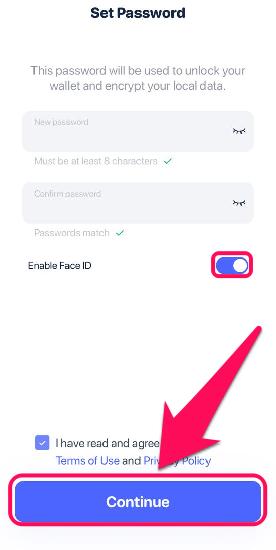
Step 9: Set up a new password to secure your Rabby Wallet.
How Many Wallets Does Rabby Wallet Support?
There is no hard limit on the number of addresses (wallets) you can manage on the Rabby wallet simultaneously. Practically, most users manage 5-10 for simplicity. However, you can create and import as many wallets as needed on the platform at any time.
Rabby excels at managing crypto assets across multiple chains and protocols, seamlessly integrating them within those addresses. So, you can create or import addresses on different chains and manage them all within Rabby’s sleek interface.
Managing Multiple Wallets Effectively
When using a wallet that supports multiple chains and addresses, organization is crucial to prevent costly errors. For effective management, one approach is to rename the Rabby Wallet sub-wallets according to their intended use. You can use names like “My ETH”, “Testnet Chain”, etc., for example, instead of the default address string that looks the same.
Also, each wallet you import will have its unique 12-word seed phrase. Ensure that you back up each one individually and store them securely offline for recovery purposes, as well as to prevent unauthorized access to your wallet and its funds.
Bottom Line
You save yourself the trouble of managing crypto across multiple platforms by importing an existing wallet into the Rabby Wallet. The process is straightforward on mobile and extension, allowing you to migrate to Rabby seamlessly for a better experience.
Remember that your wallet imports do not affect your funds, private keys, or security. Now that you know how to import an existing wallet to Rabby Wallet, check out this guide on how to secure and back up your Rabby Wallet to safeguard it from those looking to steal your funds.
FAQs
1. What happens if I enter the wrong seed phrase during import?
Rabby will automatically display an error, demanding that you double-check your mnemonic phrase and retry the process.
2. Does importing delete my original wallet on the other app?
No, importing is like copying all the data from one wallet into a new platform. Your original wallet account data (e.g., MetaMask) remains intact, and funds are accessible on both platforms.
3. What chains does Rabby Wallet support?
Unlike wallets that focus primarily on Ethereum, Rabby supports over 100 blockchains, including Ethereum, BNB Chain, Polygon, Avalanche, Arbitrum, Optimism, and more.