



- •Lute is an Algorand-exclusive wallet for managing ASA, exploring applications, and signing transactions seamlessly.
- •It supports Ledger, HD wallets, MultiSig accounts, and direct dApp connection.
- •Lute wallet features atomic swaps, an asset inbox, and custom networks, which expand how users manage $ALGO.
Interacting with DeFi apps, NFTs, or tokenized assets on Algorand requires more than just holding $ALGO. You need a tool that simplifies complex ASA mechanics like opt-ins, trading, asset ID sync, and supports AVM transaction logic to connect directly to dApps without unstable sessions. The Lute wallet, designed specifically for the Algorand ecosystem, provides a non-custodial interface for managing $ALGO and exploring the network using the aforementioned perks. However, many users struggle with Lute’s setup due to multiple account options and ASA handling requirements. This guide shows you how to correctly configure and get started with Lute Wallet so you can interact with Algorand dApps without errors.
Why You Need Lute Wallet
You need the Lute Wallet if your activity on Algorand involves dApps, structured accounts, or asset management beyond basic transfers. Lute is a non-custodial wallet that supports Ledger hardware wallets and rekeyed accounts, enabling users to sign transactions externally while maintaining full control over their private keys.
The wallet is best suited for users who need a platform to explore the network across multiple environments (mainnet, testnet, and localnet). It also supports HD 24-word, multisignature, and Non-Fungible Domain (NFD) accounts, enabling setups in which multiple keys control a single account and grant additional ARC-55 token access.
Additionally, Lute offers a direct, seamless dApp connection without relying on third-party protocols. This direct connection setup eliminates the expired session bugs common with WalletConnect, offering a more reliable dApp experience.
The wallet also features atomic swaps and a built-in Asset Inbox that lets you receive ASA tokens without first formally opting in to the network. Lastly, the Lute wallet’s user-friendly interface makes it an ideal choice for users looking to scale up their Algorand experience levels.
Getting Started With Lute Wallet
There are several clone apps online labeled “Lute Wallet,” so it is important to follow setup guides from a reliable source to avoid installing malicious apps. At the time of writing, the Lute Algorand wallet is available as a browser extension and a web wallet. To get started with Lute wallet, you must install the app and create your new Algorand account.
Download
Downloading the Lute wallet involves finding the official Lute browser extension and installing it in your favorite Chrome-based browser. Here is a step-by-step walkthrough on how to download the Lute wallet browser extension:
Step 1: In your favorite Chrome-based browser (Chrome, Brave, Edge, etc.), visit the Lute Chrome Web Store page.
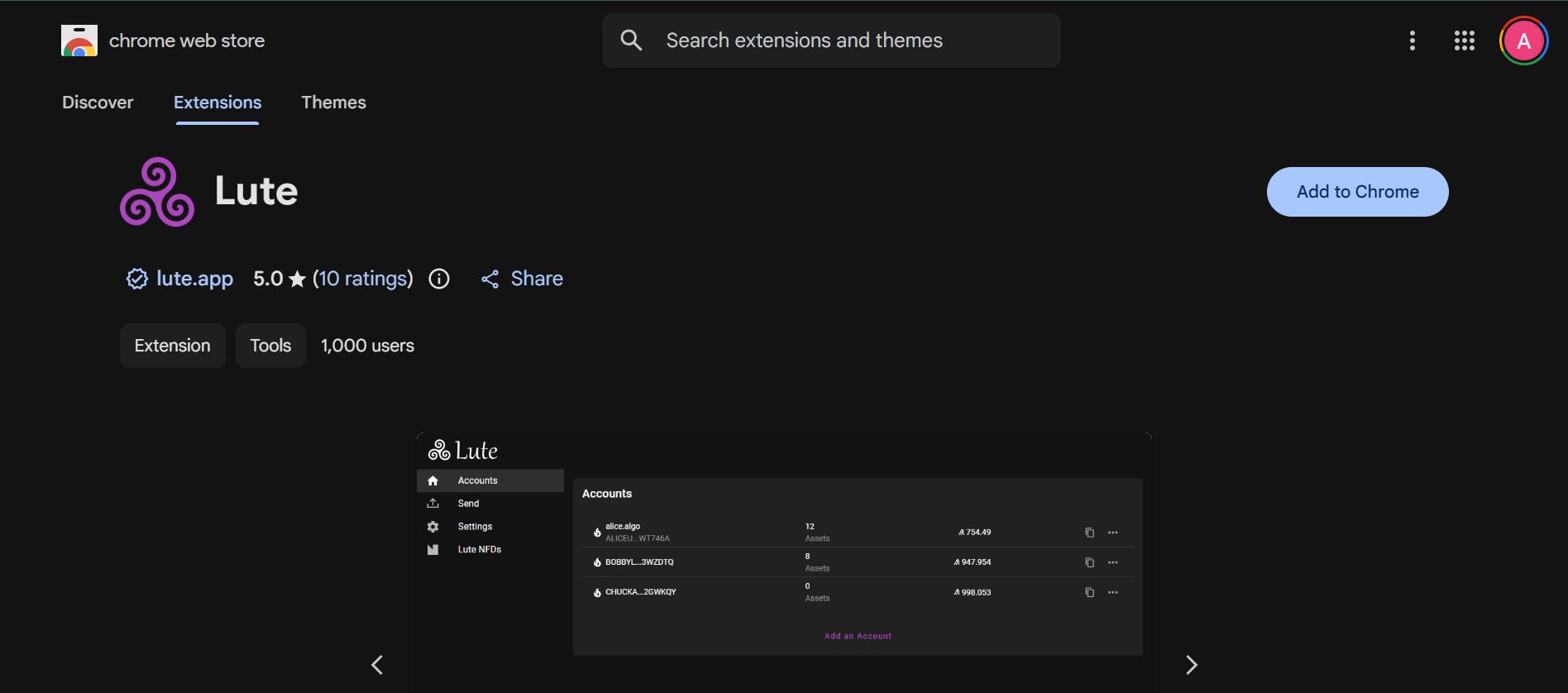
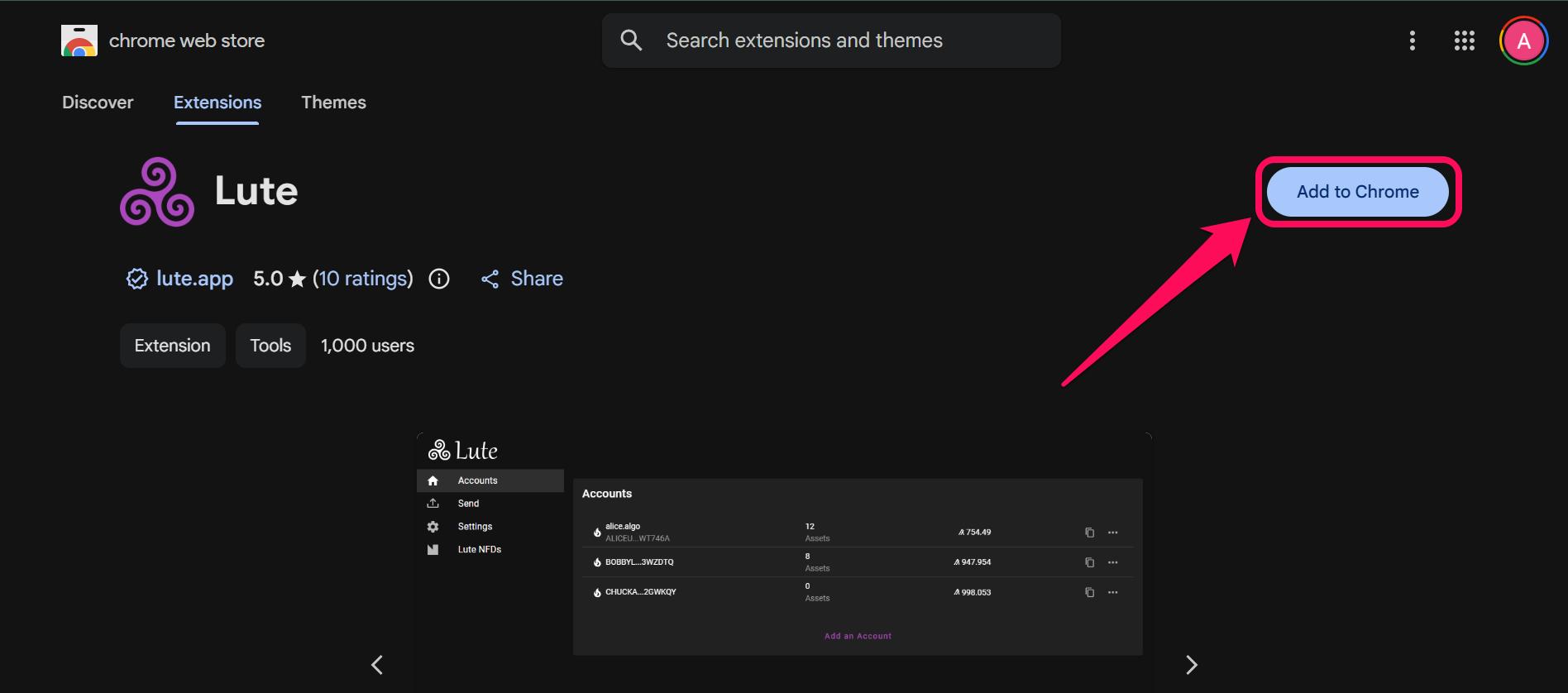
Step 2: Find Lute Wallet, then click Add to Chrome.
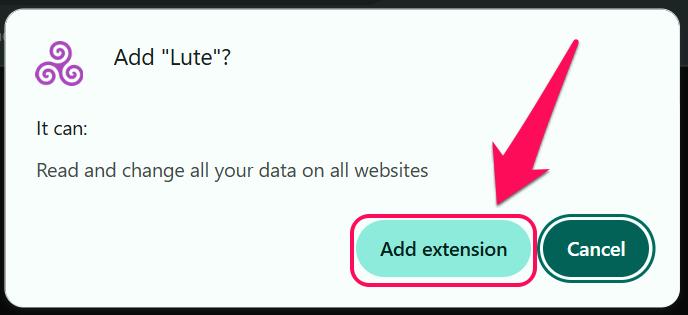
Step 3: Tap Add extension to confirm the pop-up in your browser.
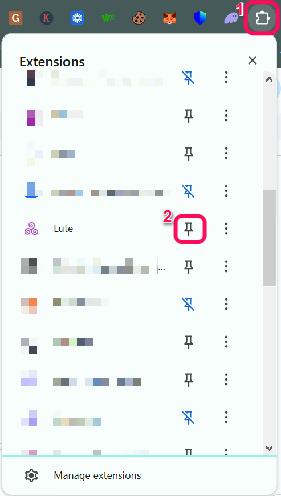
Step 4: Once installed, click the puzzle icon in the top-right corner of your screen and click the pin icon next to Lute to make it easily accessible.
If you prefer using the web interface, locate the Lute Wallet website and follow the account creation steps below.
Wallet Creation
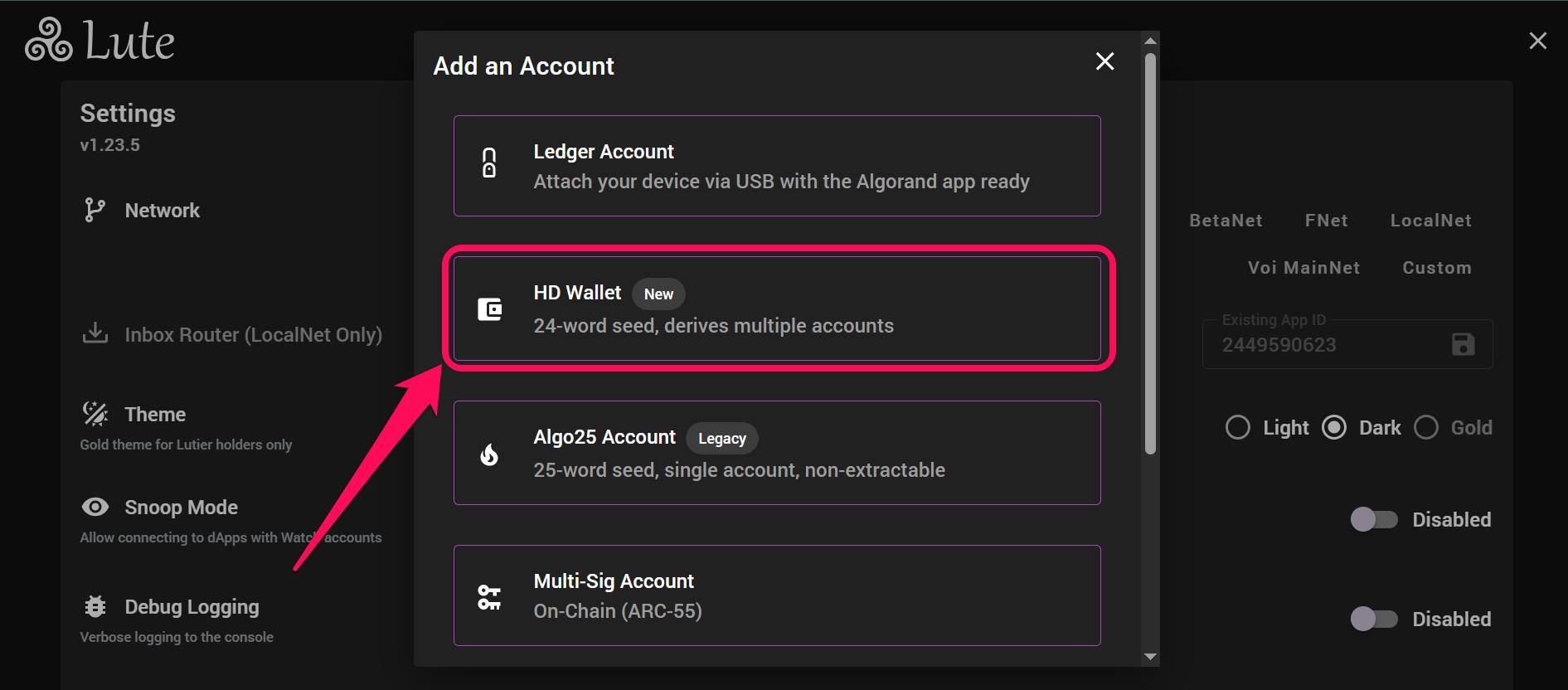
After installing the extension or locating the Lute web app, the next step is creating your new Algorand account. Users can create Ledger, HD 24-word, Legacy Algo25, 12-word, or Multi-Sig accounts, depending on how they want to manage keys. The steps below focus on creating a standard HD 24-word Lute wallet account:
Step 1: Launch the Lute wallet browser extension or web app.

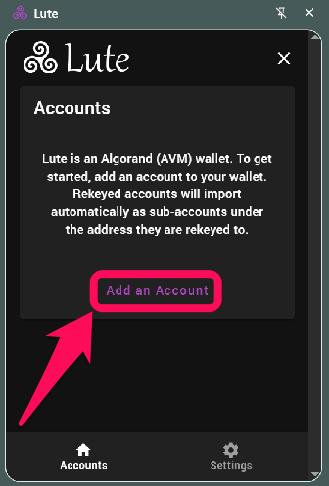
Step 2: Click Add an Account.
Step 3: Select your account type (e.g., HD 24-word wallet).
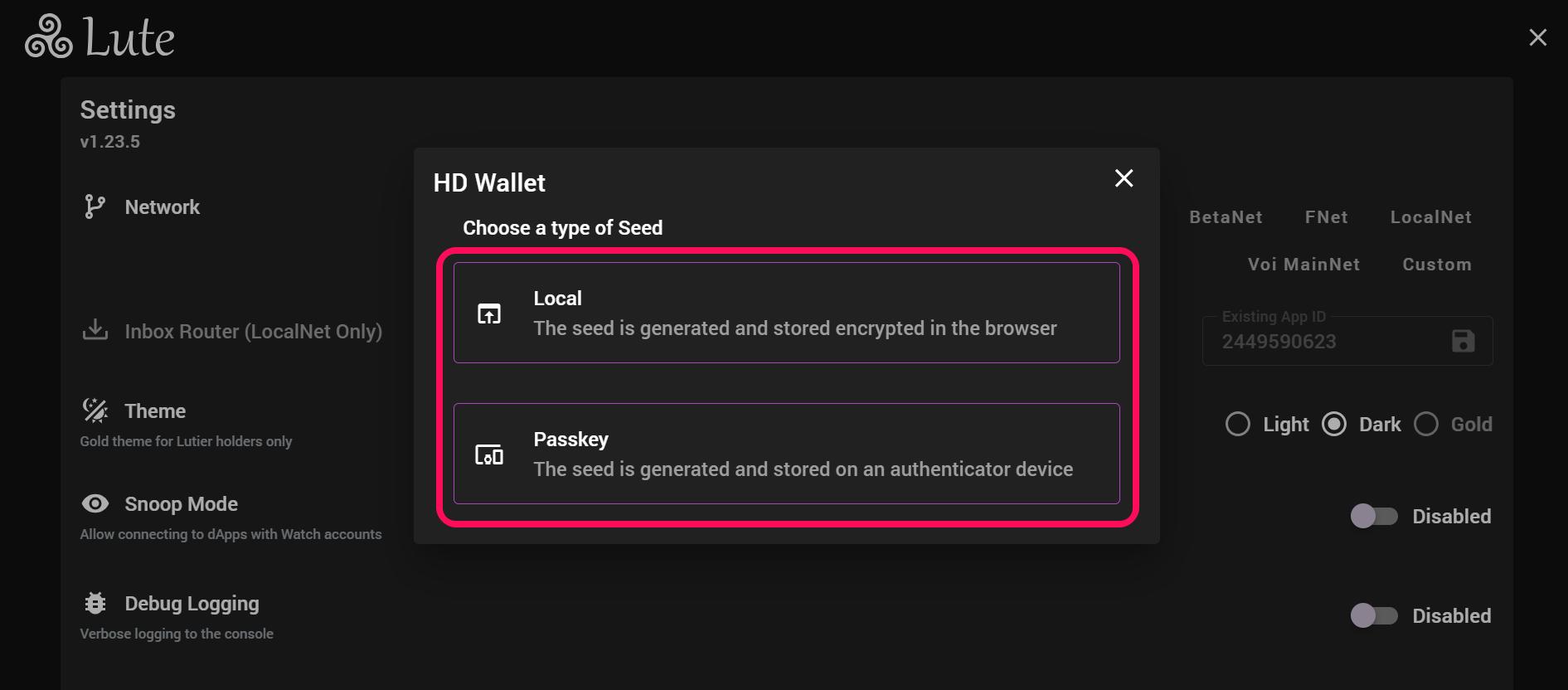
Step 4: Choose your preferred seed storage type (Local or Passkey).
Step 5: If you chose Local seed, you’ll get a prompt to set a password to use the feature. Hence, click on “Set Password“.
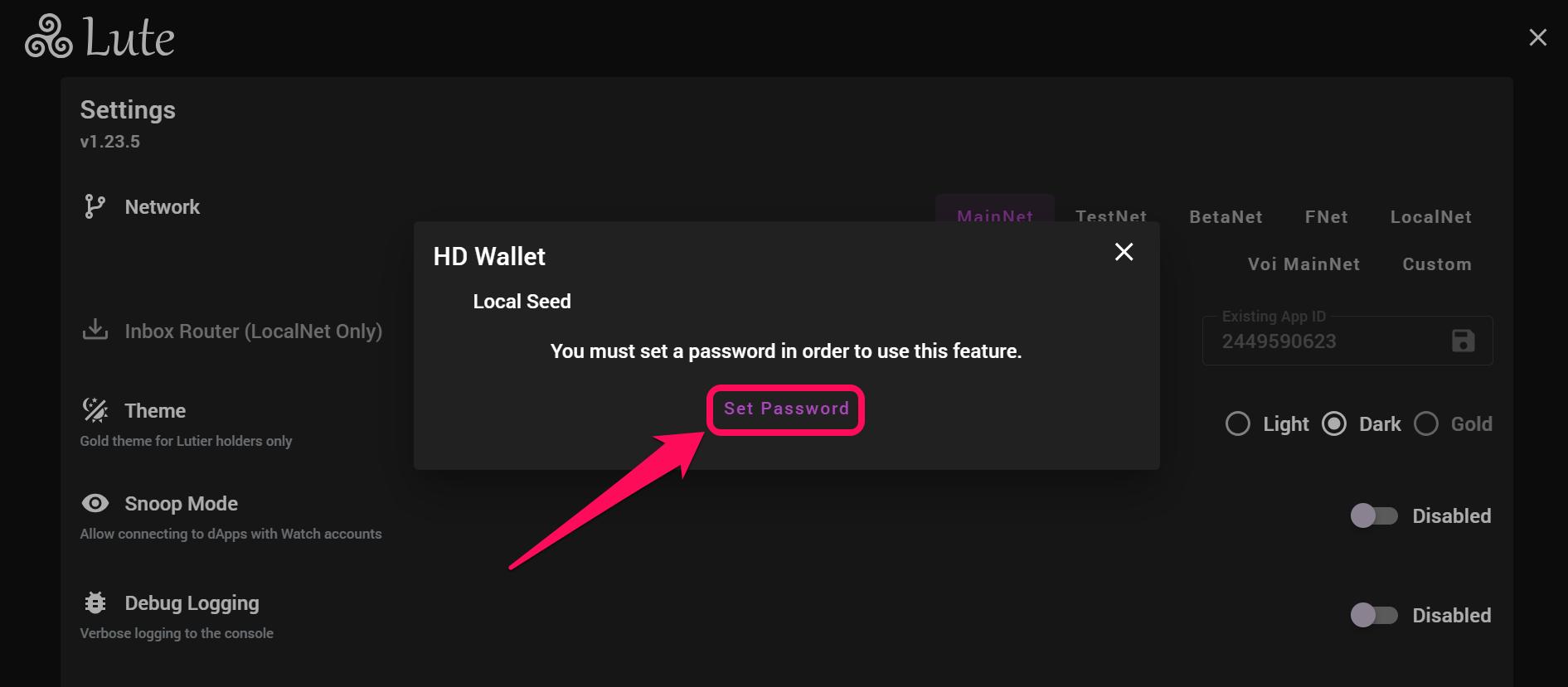
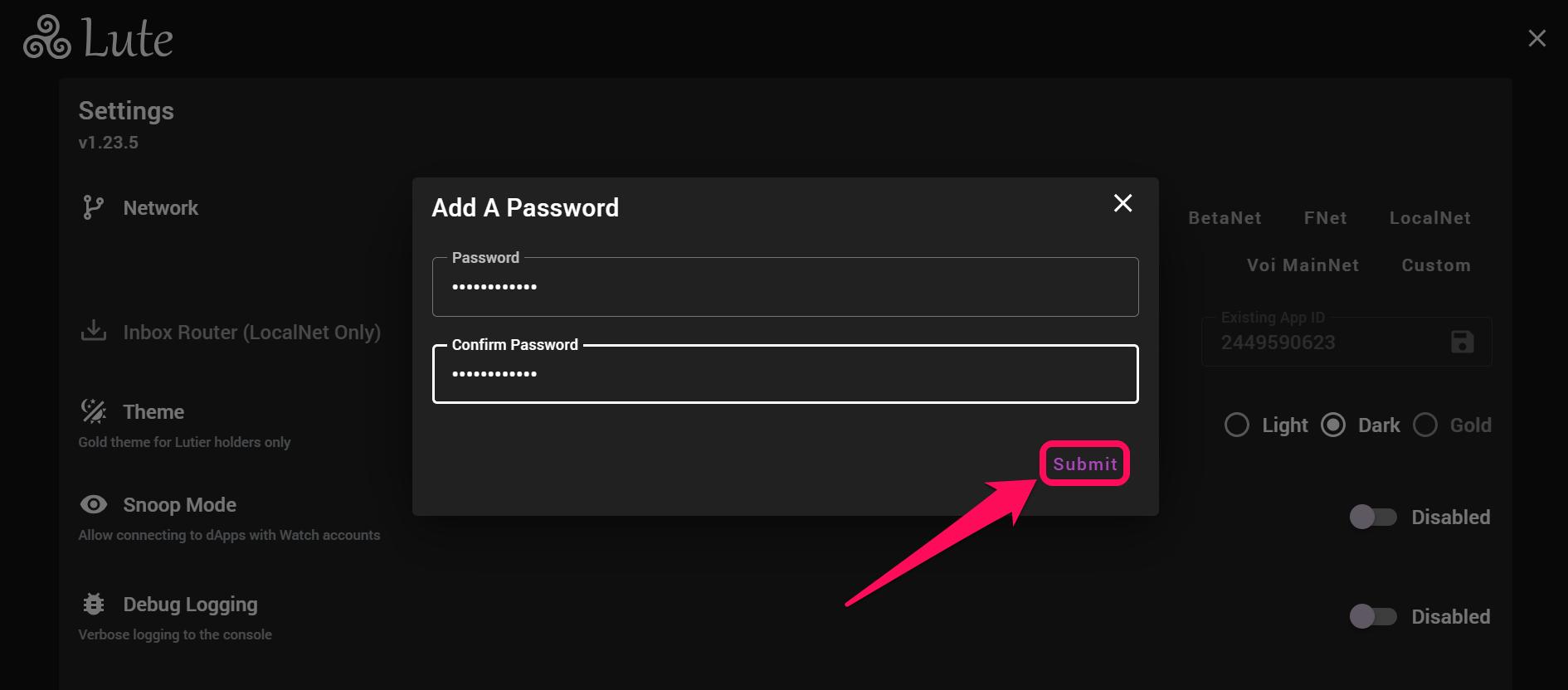
Step 6: Next, create a password, confirm it, and click on Submit to proceed.
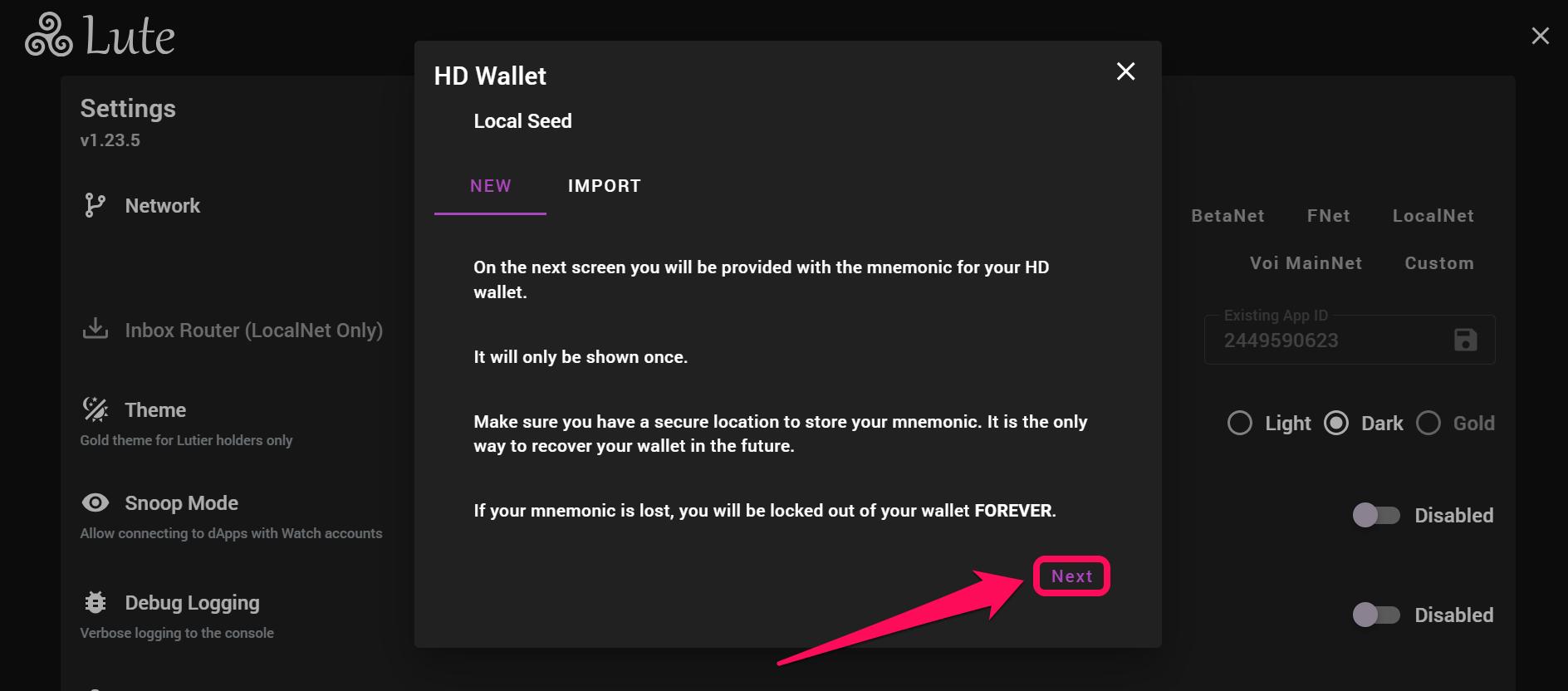
Step 7: The next page will give you an option to create a new local seed or import an existing one. For new local seed click on Next.
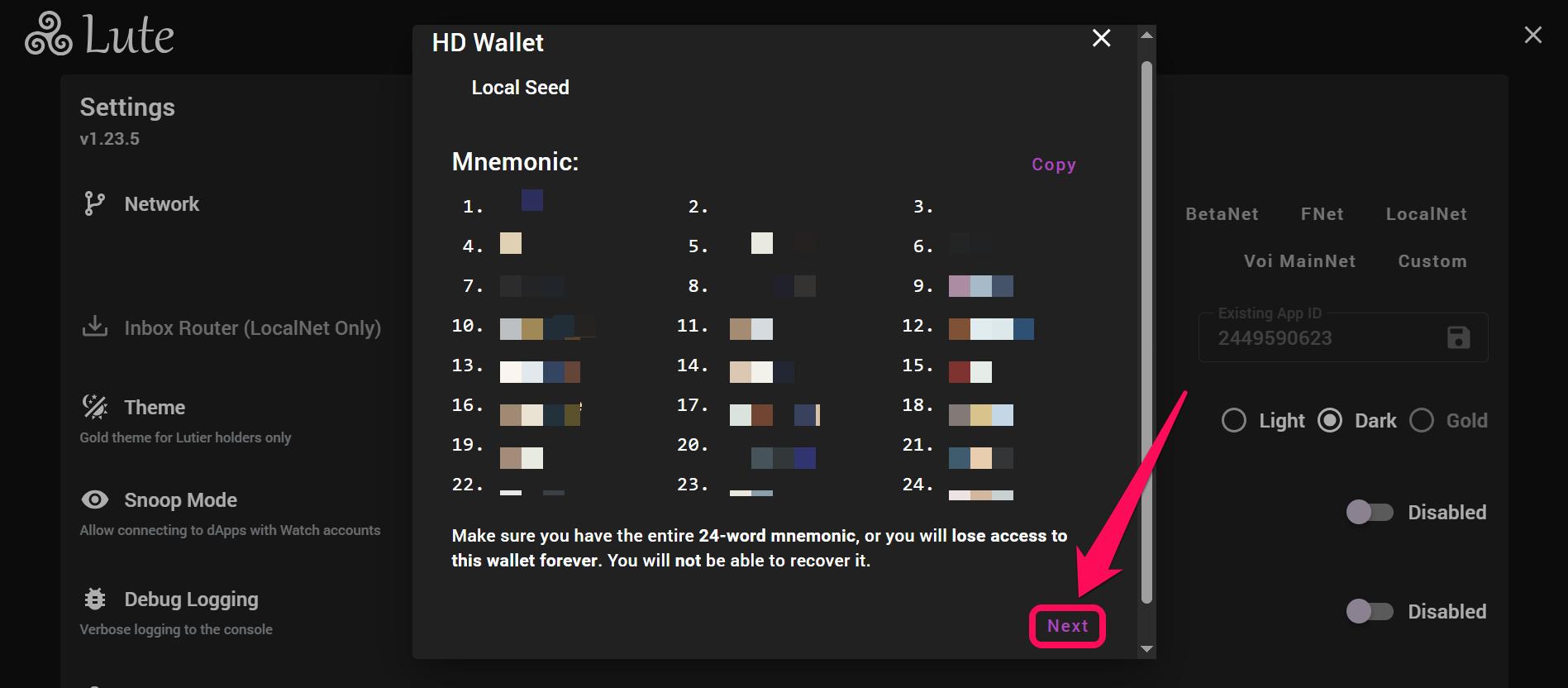
Step 8: A 24-word recovery phrase will appear; write the words on paper, store them securely, then click Next.
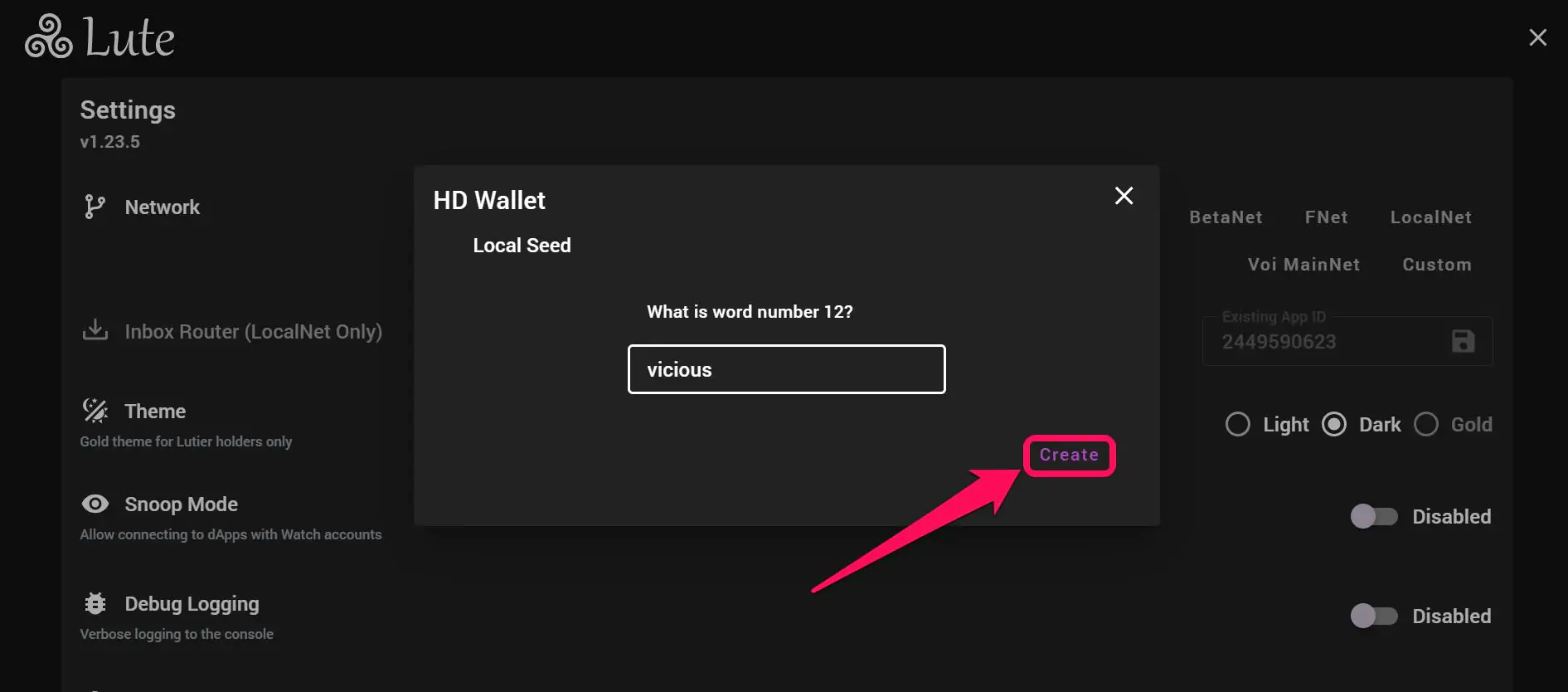
Step 9: Confirm your seed phrase, then create a new password. Click Create to finalize the process.
Quick Tour of Lute Wallet
Lute wallet features a simple interface, making it easy to navigate various account types on one platform. The sidebar-driven dashboard displays the account list, settings, and transaction menu. On the account menu, you will find a scrollable list of your managed accounts, including both Hot and Ledger wallets.
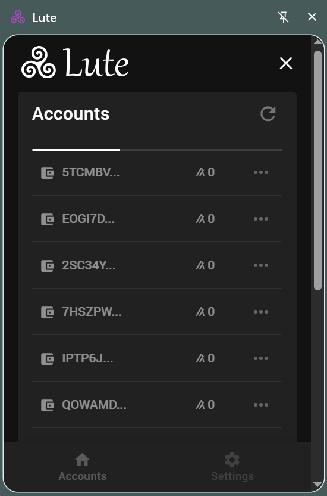
Each account card shows the public addresses, asset balance, and a direct link to the blockchain explorer. The settings menu controls network switching between mainnet and testnet and is the go-to for any tweaks you may want to make to your account. For hardware users, a dedicated connection status bar confirms the active Ledger device link before transaction signing.
Bottom Line
Lute’s emphasis on secure key management and easy transaction execution, complemented by Ledger, MultiSig, and dApp support, makes it an ideal tool for ideal for users seeking a platform with access to all Algorand ecosystem features.
Available as a browser extension and a web app, the interface makes it easy to get started with Lute Wallet and complete complex blockchain activities directly from your desktop. However, if you prefer the mobility and biometric security of a handheld experience, our guide on Defly Wallet setup can assist you in setting up a mobile-first alternative.
FAQs
1. Does Lute wallet automatically detect rekeyed Algorand accounts?
Yes, when you add a parent account, Lute Wallet can automatically detect and import accounts that have been rekeyed to it.
2. Does Lute Wallet have WalletConnect integration?
No, the Lute wallet does not depend on third-party WalletConnect solutions for dApp connections. Instead, it uses a direct signing flow where transactions are passed to the wallet for approval.
3. Can I recover a Pera Wallet account on Lute?
Yes, you can recover a Pera Wallet account on Lute, but only if your Pera account was rekeyed to a Ledger device. In that case, you can access it on Lute using your Ledger hardware keys. Standard mnemonic-based Pera accounts cannot be recovered on Lute.