


- •The Favorites feature is located within the dApp browser of the Trust Wallet app.
- •Marking dApps creates shortcuts for one-tap access to websites like Uniswap, etc.
- •Favorites don’t sync across devices or browser extensions.
Constantly scrolling or typing URLs to open your daily dApps can be frustrating and even cause you to miss opportunities in this volatile Web3 market. That’s why you should mark dApps as favorites in Trust Wallet, creating instant shortcuts for one-touch access to save time and improve your dApps usage. In this post, we’ll guide you through the fastest steps to bookmark a dApp inside Trust Wallet, whether on mobile or browser.
Why Marking dApps as Favorites in Trust Wallet Actually Helps
The option to save dApps in Trust Wallet is a crucial time-saving personalization tool that allows users to bypass slow navigation during their daily Web3 activities. Marking dApps simplifies your Web3 experience by making it easier to access your favourites, especially when you’re juggling multiple chains or protocols.
Instead of scrolling through history or typing URLs, “Favorites” puts your go-to platforms right up front in Trust Wallet saved dApps section. This allows you to access dApps quickly in Trust Wallet for quick trades or swaps when the market is changing fast. Also, it helps eliminate URL typing errors that can lead to incorrect sites, potentially compromising the security of your account.
Step-by-Step: How to Mark dApps as Favorites in Trust Wallet
The steps below show how to bookmark a dApp inside the Trust wallet browser extension and mobile app.
Extension
At the time of writing, the Trust Wallet extension does not have a native “Favorites” section exclusively for dApps. However, you can use browser shortcuts and bookmarks as a workaround:
Step 1: Open the Trust Wallet extension on your preferred browser.
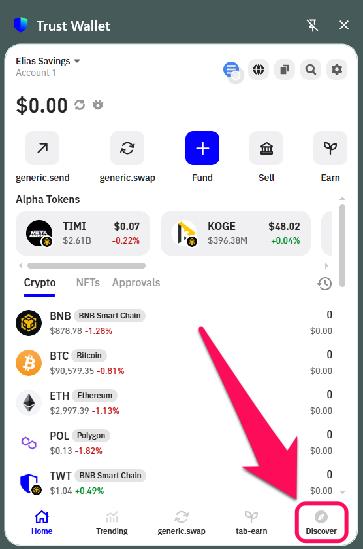
Step 2: Click the Discover tab at the bottom right corner of your screen.
Step 3: Navigate to the dApp website you want to bookmark from the enlisted popular options and click on it.
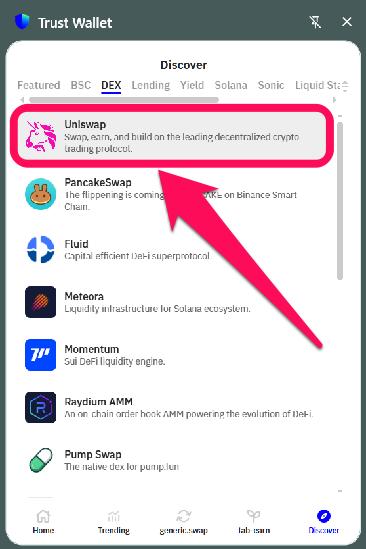
Step 4: A new tab directed to the dApps URL will pop up. Next, tap the star icon in your browser’s address bar.

Step 4: Use a recognizable folder and name for easy access, and click on Done.
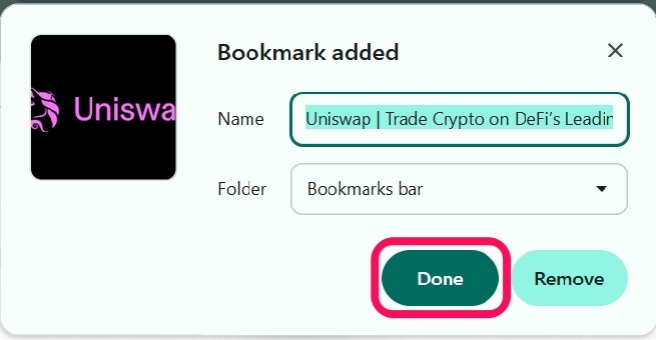
Step 5: When you revisit, open the saved bookmark to gain access.
Mobile
Here’s a step-by-step walkthrough on marking dApps as favorites in Trust Wallet mobile:
Step 1: Launch the Trust Wallet app on your phone.
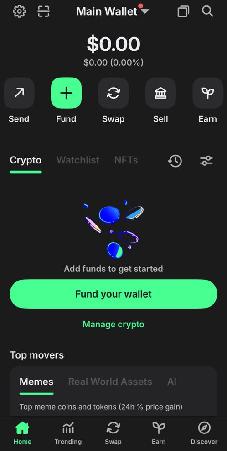
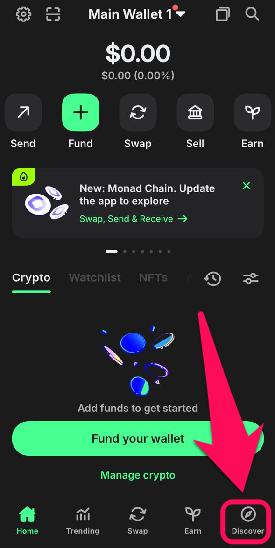
Step 2: Click the Discover icon at the bottom right corner of your app to enter the in-app dApp browser.
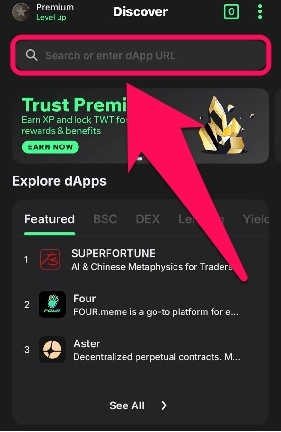
Step 3: Enter the link to the dApp you want to bookmark in the search bar or access it via the Explore dApps option.
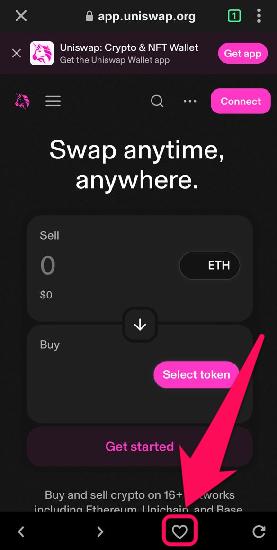
Step 4: At the bottom-center of your screen, tap the Heart icon to add the dApp as a favorite.
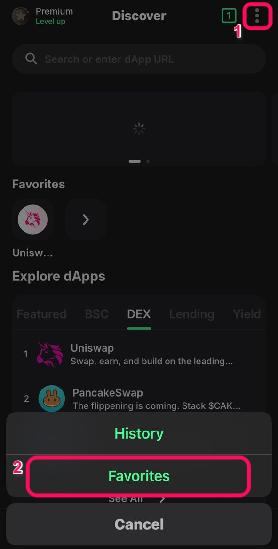
Step 5: When you revisit the dApp browser, click the vertical ellipses (hamburger icon), select “Favorites,” then click your saved dApp for one-touch access.
Bottom Line
Marking dApps as favorites in Trust Wallet gives you a smoother way to access the platforms you use the most. It cuts down the time spent typing links, reduces the chances of landing on the wrong site, and keeps your overall Web3 workflow more organized. As your list grows, you can easily manage and remove favorite dApps in Trust Wallet to keep things tidy. And if you want to personalize your setup even more, explore simple tweaks like changing your wallet name in Trust Wallet for clearer labels and better structure.
FAQs
1. Do favorites sync between mobile and browser extension accounts?
No, the favorite dApps option is device-specific and won’t sync across multiple devices or with the browser extension. Add them separately for each platform.
2. What is a dApp website?
Think of dapps as traditional websites that you can access in your browser, but that have a special portal built into them that links them to a blockchain. To interact with the network’s functionality, you need to have a wallet connected to the dApp portion of the website.
3. How do I find dApps in Trust Wallet?
Open the Trust Wallet in-app browser, then select the search bar at the top of the home page and type in the dapp’s URL to navigate to their site. You can also view the top blockchains’ dApps and filter the list by categories like DeFi, NFTs, DEXs, etc.