


- •You must know your current password to change it to a new one.
- •Changing your Phantom wallet password only affects local access on that device.
- •Your recovery phrase stays the same and is not needed for a password update.
Your password acts as the first security checkpoint against unauthorized access to your funds. However, most of us set a quick, simple password when we first install Phantom just to get started. As your portfolio grows, that ‘temporary’ password can start to feel like a major security risk. Whether you think you typed your login too openly, you share a desktop with others, or you simply realized your credentials are too easy to guess, updating your security is the smart move. In this post, we’ll guide you on how to change your Phantom Wallet password safely on both the browser extension and the mobile app.
What to Know Before Changing Your Phantom Wallet Password
Firstly, Phantom doesn’t restrict how often you can change your password. Also, there is no cooldown or waiting period between changes, and when you update it, Phantom doesn’t send emails, alerts, or external confirmations.
Furthermore, your password is device-specific and only protects local access to your wallet on that device. It doesn’t sync across devices, control on-chain access and transactions, nor enforce blockchain permissions. This means that if you change your Phantom browser extension password, the change will not apply to the Phantom mobile app.
Additionally, you must have already logged in or know your current password to change it. If you’ve forgotten your password, the only way to access your account is to reset your Phantom Wallet.
Although you don’t need the wallet’s secret phrase for a Phantom Wallet password change, you must have it around if resetting the wallet becomes your only option. So, ensure you keep your secret phrase safe and secure offline, preferably written down and kept in multiple locations.
Read more: Phantom Wallet Review
How to Change Phantom Wallet Password on the Browser Extension
Open your desktop browser extension and follow the steps below to update Phantom Wallet password:
Step 1: Log in to your Phantom wallet on the browser extension.
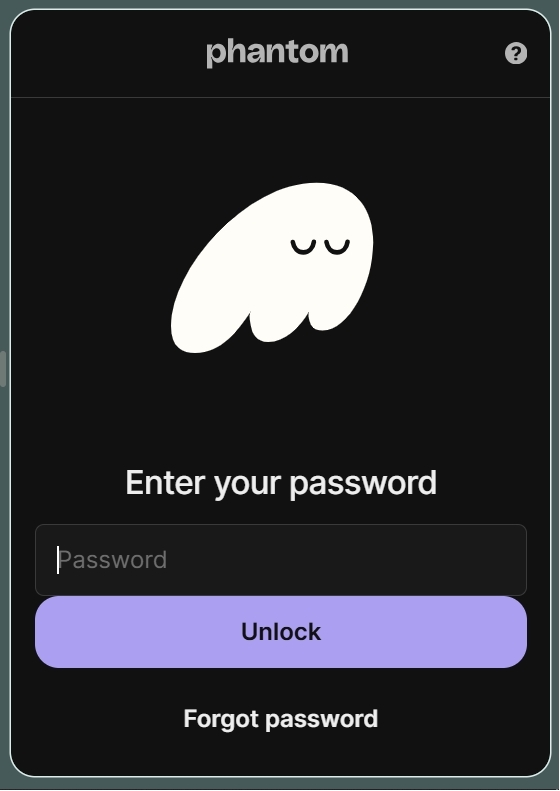
Step 2: Tap your profile avatar in the top left corner of the screen.
Step 3: Head to Settings.
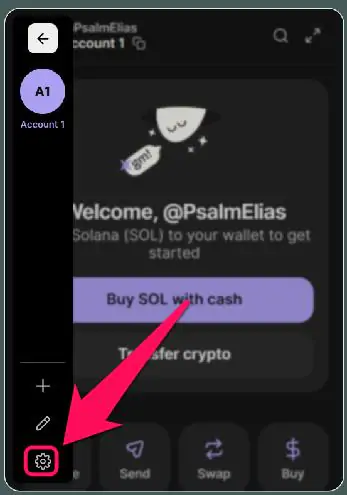
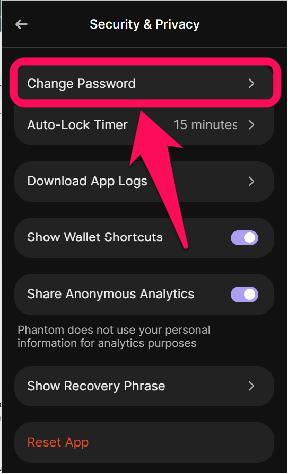
Step 4: Click Security & Privacy.

Step 5: Select Change Password to proceed.
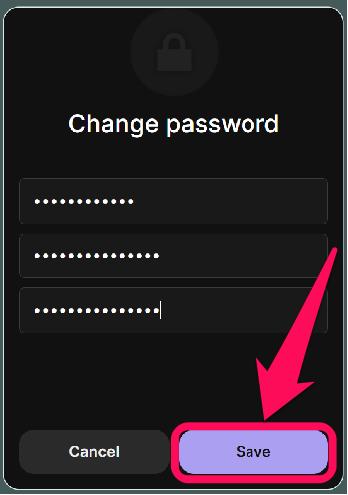
Step 6: Enter your current password, then create a new strong password and confirm it. Click Save, and this new password is what you’ll use to unlock Phantom in the future.
How to Change Phantom Wallet Password on the Mobile App
Phantom wallet security settings on the mobile app work slightly differently from the extension. Your wallet app is tied to your device’s security details. So, the passkeys, such as biometrics and PIN, used to unlock your device are what you need to unlock your Phantom wallet app.
Therefore, changing your device’s password/PIN/biometrics via the phone’s settings will affect the Phantom app. If you forget the PIN, reset Phantom Wallet password entirely, then restore access by importing the wallet using its seed phrase. To enable or disable device authentication, follow the steps below:
Step 1: Open the Phantom Wallet app.
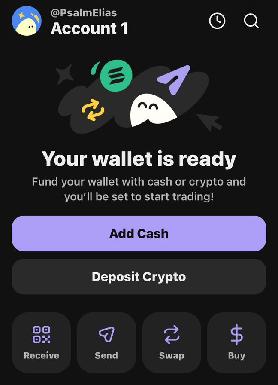
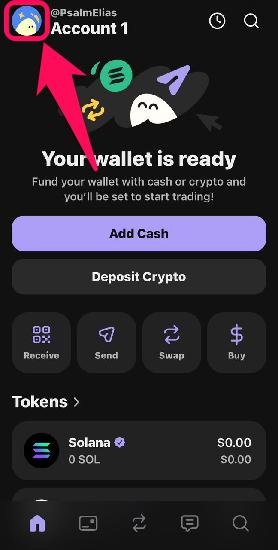
Step 2: Access the settings option by clicking on your profile avatar at the top left corner of the app.
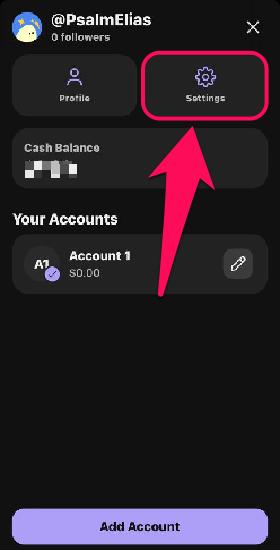
Step 3: Next, click on Settings (gear icon).
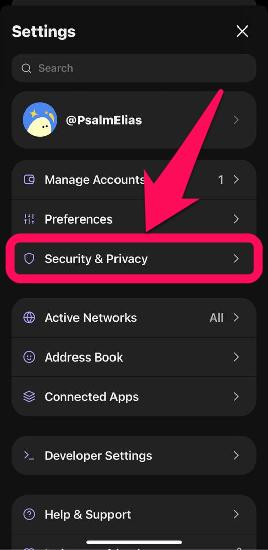
Step 4: Tap the Security & Privacy option from the list.
Step 5: Toggle the Use Face ID Authentication button to turn the Device Authentication feature on or off.

What Happens After You Change Your Phantom Wallet Password?
After changing the Phantom wallet login password, the app may auto-lock after an idle period or if you exit the app. This is normal, and you can adjust the auto-lock timer at any time in settings. Also, changing your password on one device doesn’t affect the authentication process for accessing that wallet on another device.
Passwords/PINs are device-specific, so each device maintains its own local Phantom wallet access settings and requires separate authentication.
Additionally, your funds, transaction history, and on-chain permissions remain untouched even after a password change. Your Phantom wallet secret recovery phrase (SRP) also remains the same, as password changes do not affect blockchain access in any way.
Bottom Line
Ensure you change your Phantom Wallet password frequently, and you can do it without SRP if you recall your current password. Also, the Phantom wallet login password in the mobile app is linked to your phone for easy recall and access.
If you forget your password, you cannot change it; your only option is to use our detailed guide to reset the Phantom wallet app entirely. Knowing the difference between changing your password and resetting your Phantom wallet can help you choose the right action and avoid unnecessary risks.
FAQs
1. Will changing my password log me out of other devices?
No, your wallet remains intact on all devices where it is previously logged in, despite a password change. Each device uses its own local password and must be managed separately.
2. Can Phantom Wallet get hacked?
While Phantom Wallet offers strong safety features, no wallet is completely safe from hackers. By taking the right steps to protect your cryptocurrency (such as setting up strong passwords and protecting your SRP), you can significantly reduce the risk of online attacks.
3. Can I have the same Phantom wallet on two devices?
If you created your wallet using a recovery phrase (also called a seed phrase), all accounts derived from your recovery phrase are accessible on any device where it’s imported. Custom names, icons, and linked wallets can sync across devices using the same seed phrase.