


- •Phantom lets you use any emoji or NFTs you own as your profile icon.
- •Avatar updates are visual-only and safe to update anytime.
- •Once updated, your account’s avatar syncs across the browser extension and mobile app for the account.
The Phantom Wallet interface allows for account customization through an avatar feature that lets you add your favorite image to give your accounts a distinct outlook. Beyond its customization perk, your Phantom avatar can also help quickly identify your account. This is useful when you manage multiple accounts and need quick visual cues to avoid confusion. This guide explains the available avatar options and how to change your Phantom wallet avatar in both the browser and on mobile.
Phantom Wallet Avatar Options Explained
In the Phantom Wallet, users can select items from a vast number of options to use as their avatar. The wallet offers more avatar flexibility than many others, as you can choose an emoji or select one of your NFTs directly from your wallet as your account avatar. This makes it easier to distinguish between accounts and to reflect your personal preferences in your account’s outlook.
Using an NFT as your Phantom Wallet profile picture is especially helpful if you have multiple NFT accounts. It provides a clear visual marker without relying only on names or addresses. Unlike Phantom, wallets like Metamask typically limit avatars to initials or basic icons. Phantom Wallet NFT avatar support adds an extra layer of customization that most other wallets lack.
How to Change Phantom Wallet Avatar on The Browser Extension
Follow the steps below to edit Phantom wallet profile on the browser extension:
Step 1: Click your profile avatar in the upper-left corner.
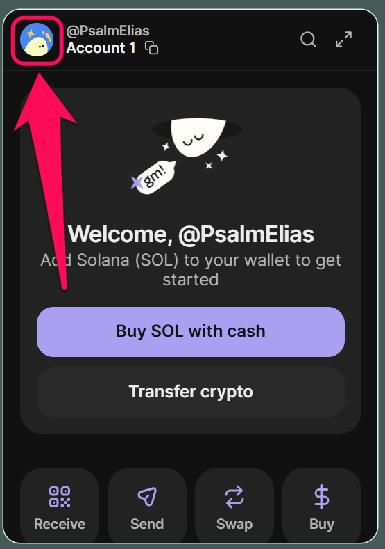
Step 2: Click Manage Accounts.

Step 3: Select the account you want to edit its avatar.
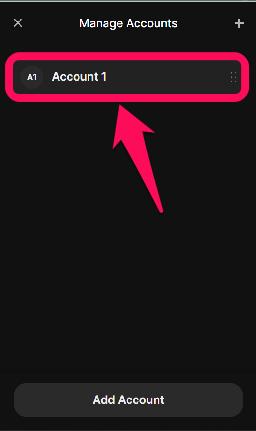
Step 4: Next, click the pencil icon in the lower-right corner of the account avatar.

Step 5: Select your preferred emoji or an NFT from your wallet, and click Save to change Phantom Wallet avatar.
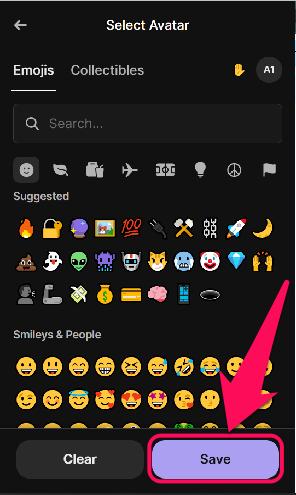
How to Change Phantom Wallet Avatar on Mobile App
You can change your Phantom wallet account avatar from within the wallet app. Follow these steps to get it done:
Step 1: Open your app and tap the profile avatar in the upper-left corner.
Step 2: Browse the accounts in the wallet and click the pencil icon next to the one you wish to change its avatar.

Step 3: Once in the account interface, tap the Pencil Icon in the lower-right corner of the account avatar.
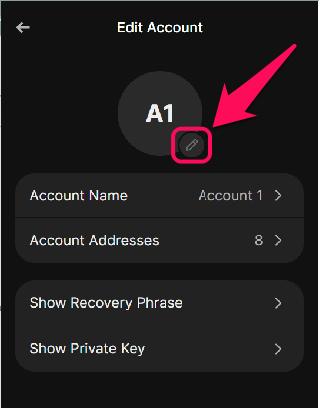
Step 4: Select an emoji or an NFT from your wallet that you want to set as your profile picture. Finally, click the Save button below to register the new Phantom Wallet account avatar.
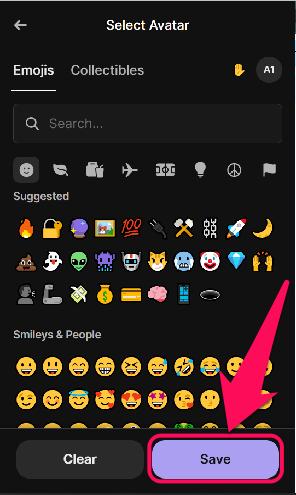
How Phantom Wallet Syncs Avatars Across Accounts and Devices
Firstly, Phantom wallet avatars are tied to individual accounts. So, you can have multiple avatars (one for each account) in your wallet at once. Once you change your Phantom wallet avatar, it syncs across the browser extension and mobile app for that account. This saves you the need to update it separately on both platforms.
Lastly, avatar changes are for visual customization only. It doesn’t affect your on-chain activity, wallet addresses, balance, connected dApps, permissions, or transaction signing. So, you can change your Phantom wallet avatar at any time without worrying about on-chain changes.
Bottom Line
The option to change your Phantom Wallet is one of the wallet’s simple personalization tweaks that make it special. Changing your avatar improves clarity when managing multiple accounts and adds a touch of flair to your wallet’s outlook. This feature separates Phantom from many other wallets whose users’ accounts are limited to boring icons and initials. If you want to improve your wallet’s labelling further, pair this with changing your Phantom wallet name for a cleaner setup.
FAQs
1. Will my avatar change show on the blockchain or to other Phantom users?
No, Phantom wallet avatars are local elements and are not visible on-chain by other Phantom users.
2. Can I remove an avatar and return to the default Phantom icon?
Yes. Phantom allows you to reset your avatar back to the default icon at any time from the avatar settings.
3. Can I use the same NFT avatar for multiple Phantom accounts?
Yes, if the NFT is available in your wallet, you can assign it as an avatar to more than one account. However, each account must be updated individually.