


![How to Change the Language in Phantom [2026]](https://www.cryptowinrate.com/wp-content/uploads/2026/02/How-to-Change-the-Language-in-Phantom-2026-1024x576.jpg)
- •Phantom currently supports 30 display languages that users can select from at any time.
- •The language setting is available on both the Phantom browser extension and mobile app.
- •Changing languages does not affect on-chain data and wallet balances.
Understanding every detail in your crypto wallet can determine whether you earn huge profits or suffer losses. Therefore, it is essential to ensure your Phantom Wallet is set to display text and figures in a language you are thoroughly familiar with. Phantom allows users to easily switch the app’s interface language in both the browser extension and the mobile app, without altering on-chain status or funds. Follow the steps in this guide to change the language in Phantom Wallet to the one you prefer most.
Can You Change the Language in Phantom Wallet?
Yes, you can easily change the language in Phantom Wallet to any of the supported language options on the app. For many users, the Phantom Wallet is set to English by default.
However, if English isn’t your native or most-understood language, the language edit option allows you to change it directly from the Phantom Wallet language settings menu. Also, there is no limit to how many times you can edit your Phantom wallet language setting. Hence, you can switch languages again at any time.
Supported Languages in Phantom Wallet
Phantom currently supports 30 display languages to accommodate users across diverse regions. Here is a list of some of the supported languages in Phantom Wallet in 2026: English, Portuguese, Mandarin, Yoruba, French, German, Spanish, Japanese, Korean, and more.
The available options may change over time as app updates and the user base expand. You can view the full list of supported languages inside the language settings menu using the steps in the following section.
How to Change Language in Phantom (Browser Extension)
The steps below explain how to change app language in Phantom Wallet browser extension:
Step 1: Log in to your wallet on the Phantom wallet extension.
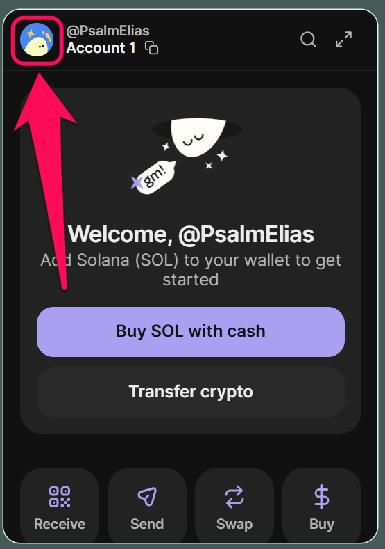
Step 2: Click the profile avatar in the upper-left corner.
Step 3: Select the Settings gear icon.
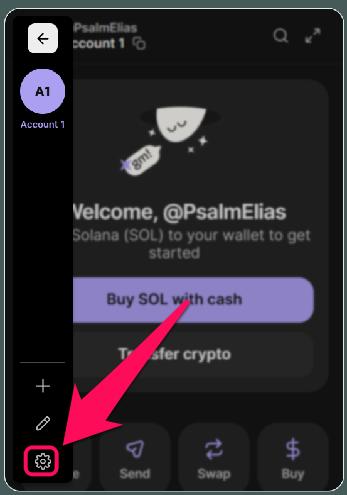
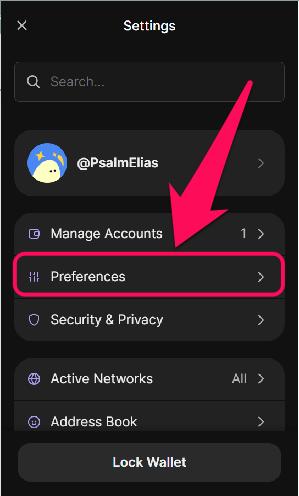
Step 4: Choose Preferences.
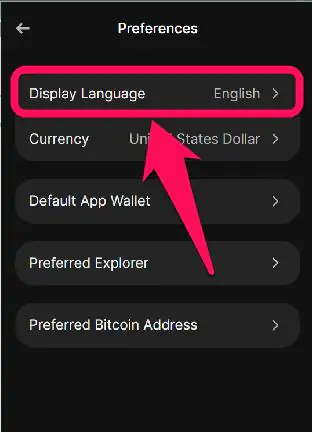
Step 5: Click on Display Language, then select your desired language from the list.
How to Change Language in Phantom (Mobile App)
Follow the steps below to switch language in Phantom Wallet app easily:
Step 1: Launch the Phantom mobile app and unlock your wallet.
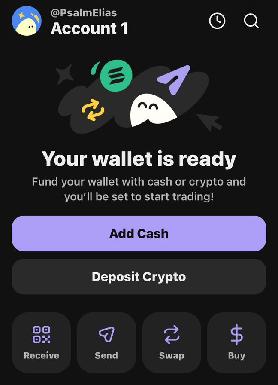
Step 2: Select your profile avatar in the upper-left corner to open the menu.
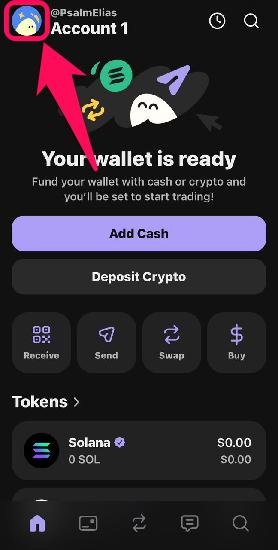
Step 3: Go to Settings (gear icon).
Step 4: Tap Preferences from the settings list.
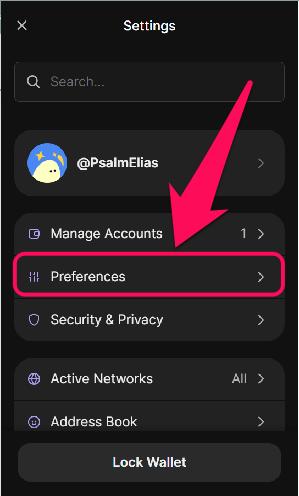
Step 5: Tap on the “Display Language”. Select your preferred language. The update should reflect across the entire wallet interface immediately.
What Changes After You Switch the Language?
Your entire wallet interface display changes to the selected language’s translation. Changing your Phantom Wallet interface language only affects how menus, labels, and system texts appear inside the wallet. However, it is essential to note that changing the language is only a cosmetic update.
Hence, features like wallet addresses, token values, balances, transaction history, and blockchain activity remain unchanged. Also, connected app permissions and signing requests are not affected by a Phantom Wallet language change. Lastly, the Support (agents and chatbot) remains in English when you switch Phantom Wallet display language, as that’s the only available language for it at the moment.
Bottom Line
Setting Phantom to your preferred language is a simple way to ensure you understand every detail of the wallet. Since you can change the language in Phantom wallet anytime, you can adjust it as your preference changes and never get stuck on one language for too long.
Also, if you’re still trying to set up your wallet to reflect your crypto preferences, you’ll need to learn how to change the display fiat currency in Phantom. Combining the two settings reconfigures your wallet to display your portfolio in the currency and language you understand best.
FAQs
1. Can I use different languages on mobile and browser at the same time?
Yes, language settings are managed per app, so you can use different languages on each device if needed.
2. Can I request that a particular language be added to the Phantom wallet?
Yes, Phantom allows users to request a specific language be added to the list of supported display languages. To suggest a new language, submit a feature request at feedback.phantom.com.
3. Does Phantom Wallet automatically follow my system’s language?
Yes, Phantom wallet generally attempts to match your device’s system language settings by default. However, you can manually change it at any time in the settings.