


![How to Change Language in Rabby Wallet [2025 Guide]](https://www.cryptowinrate.com/wp-content/uploads/2025/12/How-to-Change-Language-in-Rabby-Wallet-2025-Guide-1024x576.jpg)
- •Rabby wallet lets you select your preferred language for a smoother navigation experience.
- •The process is straightforward and can be done in both the mobile app and the extension, but it does not sync when done individually.
- •Rabby currently supports 14 popular languages, but the figure could expand with future updates.
If you have ever hesitated to approve a transaction or found it hard to use wallet features because of language barriers, Rabby wallet has you covered. With a quick language switch, you can manage your crypto in your own language. This simple step makes your wallet feel like home and helps you avoid costly mistakes, since every detail appears in words you understand. Use this guide to change the language in Rabby wallet, find out the number of available languages, and what to do if your language is missing.
Why Changing the Language Can Help
All information, instructions, and icons on the Rabby wallet are labelled in English by default, and if that’s not your native language, you may have trouble navigating the wallet’s features. Switching to your native language turns the wallet into a tool you can trust and use with confidence.
It ensures that all instructions and icons are presented with labels that you can best understand, reducing errors and enhancing usability. Via the language setting, terms like “Swap” become “Intercambiar” in Spanish or other words, depending on the language you switch to.
Steps to Change the Language in Rabby Wallet
You can quickly change your Rabby wallet language in both the mobile app and the extension. Keep in mind that each device needs to be set up separately, as changes to one do not affect the other. Follow these steps to update your language settings in both the browser extension and the mobile app.
Browser Extension
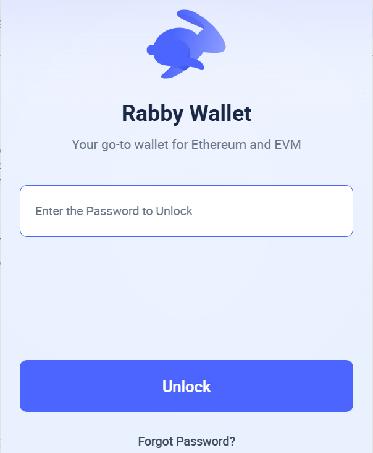
Step 1: Open the Rabby wallet extension in your desktop browser, then log in to your account.
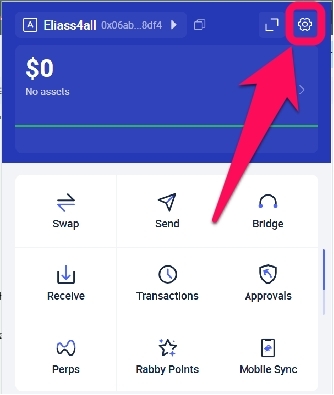
Step 2: Click the gear icon to enter the Settings page.
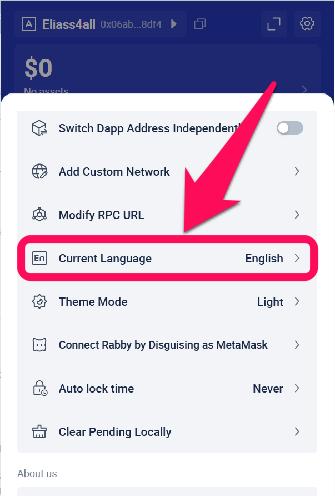
Step 3: Scroll down on the settings page, then click Current Language when you find it.
Step 4: Select your preferred language from the available options.
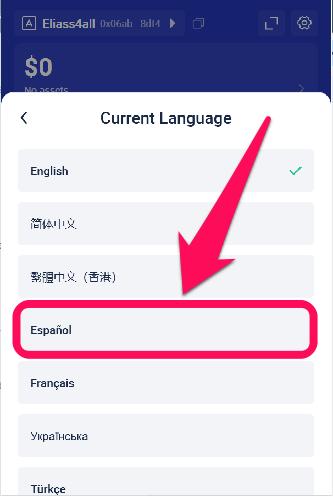
Step 5: The language change automatically reflects in the entire wallet. Return to the homepage once finished.
Mobile App
Step 1: Launch the Rabby app on your mobile phone and log in to your wallet.
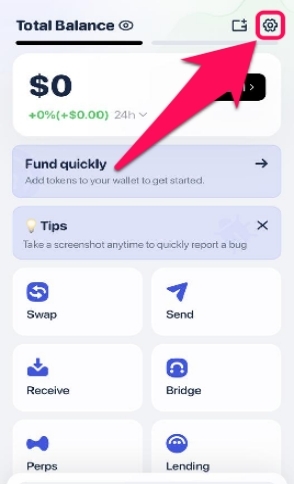
Step 2: Tap the Settings icon at the top right corner of your screen.
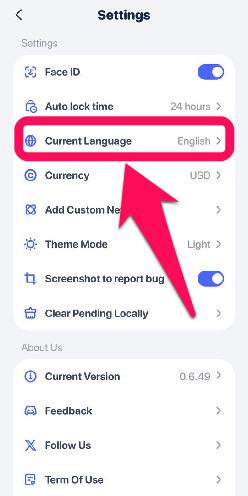
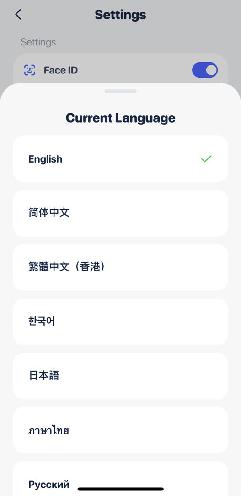
Step 3: Click on Current Language to proceed.
Step 4: Browse the list of supported languages and choose your most preferred one.
Supported Languages in Rabby Wallet
To ensure an enhanced user base, the Rabby developers have integrated some of the world’s most popular languages. At the time of writing, Rabby allows users to choose from 15 supported languages in the app. This increases the chances for most users to edit their wallet language into their native tongue, providing a better understanding of all its information and features.
However, the list of supported languages is often updated periodically with wallet updates. Ensure you update your Rabby wallet to the latest version to keep up with supported language options.
Final Thoughts
Learning how to change the language in your Rabby wallet is a simple move that can transform your Web3 experience. This step makes navigation easier and helps you avoid mistakes caused by language confusion. Once you get the language sorted out, it’s a good time to think about security. We have put together a step-by-step guide to help you back up and secure your Rabby wallet, so you never lose control of your assets.
FAQs
1. Does changing wallet language affect my data and funds?
No, the language edit setting only affects the display of your wallet. Your transactions, balances, assets, and all other settings remain unchanged.
2. Why isn’t my language supported?
This might be because the language isn’t included in the wallet’s supported languages at the time you’re checking, or you’re using an outdated version. Check for new updates periodically or write to the Rabby support team to request your native language.
3. How to update Rabby Wallet?
If you cannot see an update available here, make sure your Lattice is online. To update your Rabby extension, right-click on the Rabby icon and select Manage Extension. Then, enable Developer mode in the top right corner, and after that, click Update.