



- •Rabby wallet allows users to choose the fiat currency used to display the total asset value.
- •Changing the display fiat currency is available in the Rabby mobile app, but is restricted for users on the wallet extension.
- •Rabby supports 18 display fiat options, including USD, EUR, CAD, etc.
Seeing your crypto portfolio in a currency you rarely use can make your balance look strange or even misleading. Many users end up reaching for a calculator just to determine the true value of their assets. Fortunately, Rabby solves this problem with its display fiat edit feature, giving you clarity and control. In this guide, you’ll learn exactly how to change your display currency in Rabby Wallet and make your dashboard work for you.
Can I Change Display Fiat Currency in Rabby Wallet
Yes, you can easily change the display fiat currency in Rabby Wallet. This means your crypto balances are displayed in your local currency, making it easier to understand your actual portfolio value. Since Rabby Wallet supports multiple chains, you can see your total asset value in EUR, CAD, GBP, AUD, or any supported currency, not just the default USD.
You’ll find this setting in the wallet’s configuration options, but it’s currently only active in the Rabby Wallet mobile app. If you use the wallet extension, you’re still limited to USD for now. Many users are waiting for this feature on the extension, so keep an eye out for updates from Rabby’s developers.
Steps to Change Display Fiat Currency in Rabby Wallet
Changing your display fiat currency is a core feature in Rabby Wallet, designed with you in mind. Here’s how to switch your display currency in the Rabby mobile app:
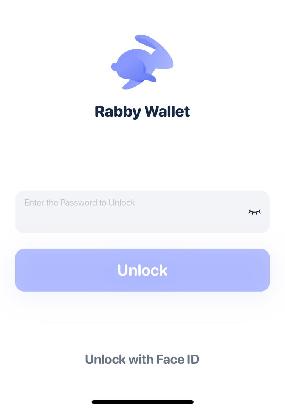
Step 1: Open the Rabby Wallet app and log in to your account.
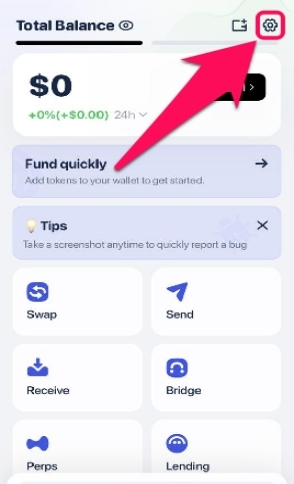
Step 2: Click the gear icon in the top-right corner of your screen to open Settings.
Step 3: On the next screen, select the Currency option.
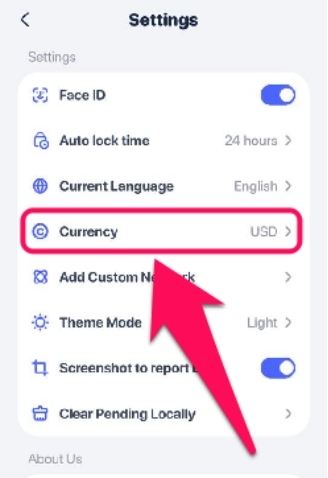
Step 4: Select your preferred display currency from the list of supported fiat currencies shown. The setting should automatically reflect across all balances in your wallet once completed.
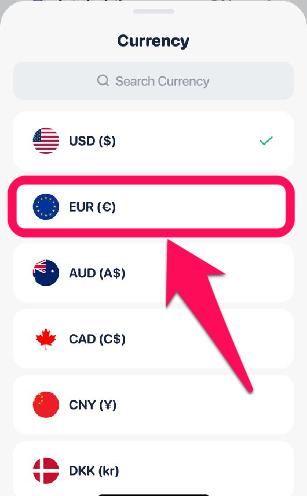
Available Display Fiat Options in Rabby Wallet
By default, Rabby displays crypto asset values in USD; however, several other options are available. At the time of writing, Rabby wallet allows users to select from 18 supported fiat currencies. So, you can switch to GBP, AUD, CNY, or any other supported currencies at any time. Below is a list of all available fiat options in Rabby wallet:
- USD
- EUR
- AUD
- CAD
- CNY
- DKK
- GBP
- HKD
- IDR
- INR
- JPY
- KRW
- MXN
- MYR
- NZD
- RUB
- SGD
- THB
Rabby updates supported currencies periodically, allowing the currency scope to be expanded as newer versions are released.
Bottom Line
Knowing how to change your Rabby Wallet display currency gives you a clearer view of your assets and lets you personalize your wallet to fit your needs. The process is simple and does not affect your total value; it only changes how your balance appears. Remember, this setting is device-specific and will not sync across other devices or the browser extension.
Once you’ve set your wallet to your native currency, take it a step further by switching Rabby’s language to your local language. Follow our detailed guide on how to change the language in Rabby Wallet to avoid any confusion and improve your experience.
FAQs
1. Can I use different display currencies for different networks?
No, the display fiat currency setting applies to the entire article and all networks within it.
2. Does changing the display currency affect gas fees?
No, gas fees are not affected by your display currency customization edit. Fees remain in the native token of the network you’re on.
3. How does Rabby know the correct fiat value of my crypto?
Rabby sources real-time price data from trusted market providers integrated within the wallet.