


- •Setting up a strong wallet and adjusting the auto-lock timer improves overall wallet security.
- •Your recovery phrase is the only way to restore access if you lose your wallet.
- •Backing up your recovery phrase offline reduces the risk of leaks and fully protects your account.
Non-custodial wallets like Phantom grant users full control over securing passkeys that provide full access to their accounts. Although this feature aims to improve wallet security, it makes it your responsibility to protect your account at all times. If someone gains access to your wallet or you lose your recovery phrase, there is no customer support or cloud service that can help you recover it. This is why learning how to secure and back up your Phantom wallet is essential. In practical steps, we’ll show you how to protect your Phantom wallet properly, ensuring safety and easier account recovery when needed.
Why Phantom Wallet Security Matters for Mobile Users
Mobile crypto wallets are exposed to everyday risks more than desktop and browser extensions. Phones get lost, stolen, shared, or compromised by malicious apps, and all of these risks can affect your funds in the Phantom wallet. Additionally, a weak wallet password or unlocked session can give someone instant access to your funds.
Since Phantom is non-custodial, you may permanently lose your account if your access is compromised or your recovery phrase is lost due to poor backups. Hence, taking a few seconds to configure security and backup settings properly is non-negotiable if you want to keep your assets safe for as long as possible.
How to Secure Your Phantom Wallet
The first step to securing your wallet is to change your password. Phantom uses a password as the first security checkpoint before accessing your accounts. So, having a secret, strong, and unique password is essential for preventing unauthorized local access to your wallet. Follow the steps below to change your Phantom wallet password:
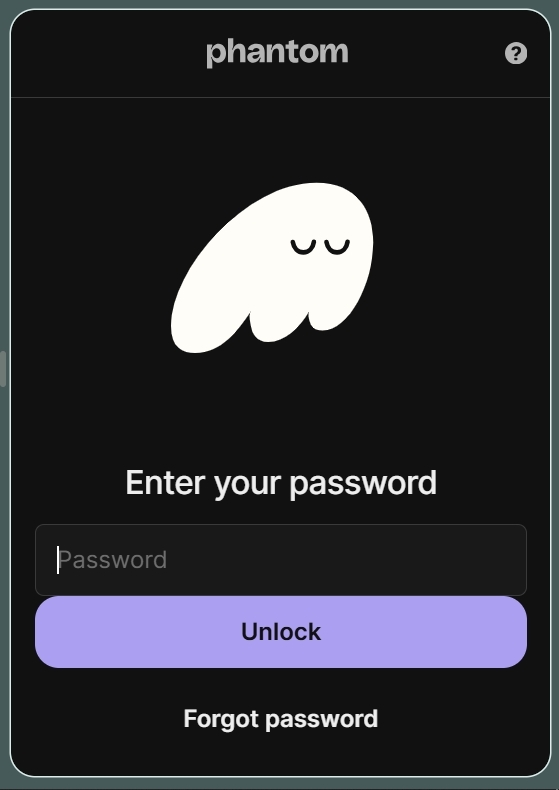
Step 1: Open the Phantom extension on your preferred browser and log in to your account.
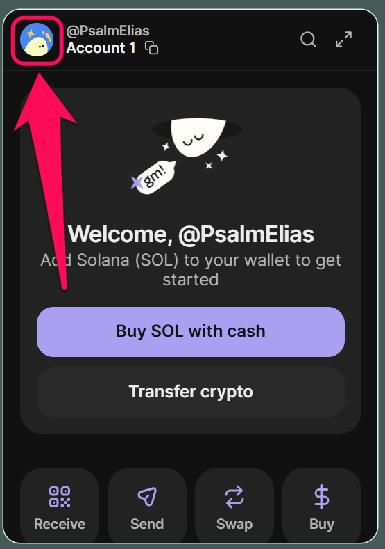
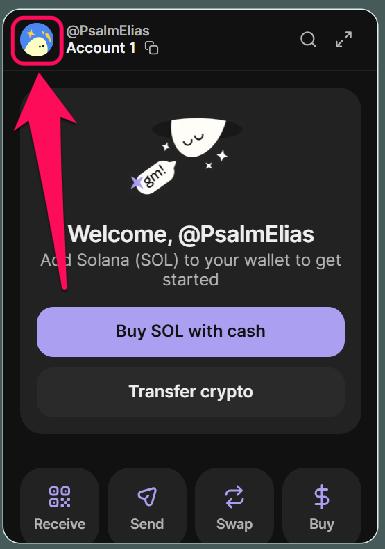
Step 2: Click your profile avatar in the upper-left corner.
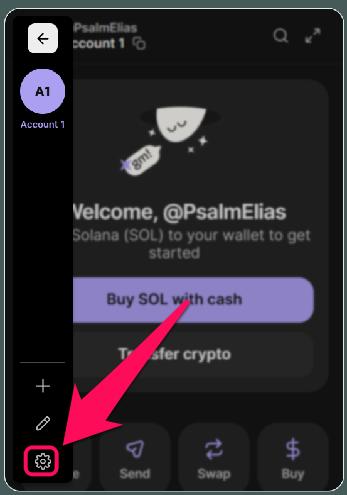
Step 3: Click Settings (gear icon) in the lower-left corner.
Step 4: Go to Security & Privacy.
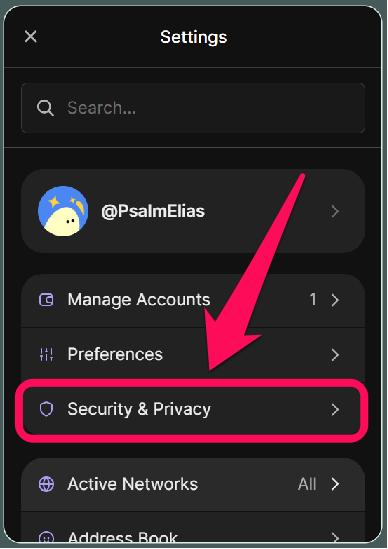
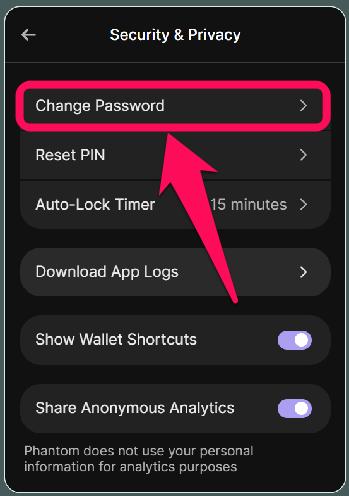
Step 5: Next, click Change Password.
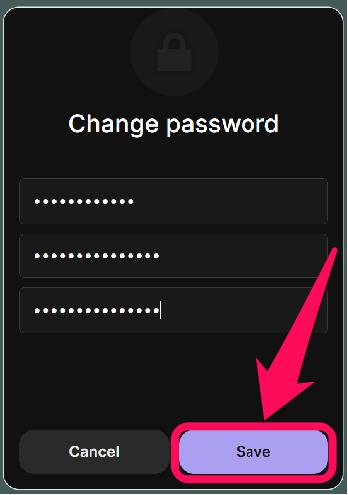
Step 5: Enter your current password, then your new password, and confirm it. Finally, click Save.
Another interesting Phantom wallet security setup feature is the auto-lock timer, which locks your account immediately or after a short idle period. Set your auto-lock timer to reduce exposure whenever a session is live but idle. Here’s how you can set your Phantom Wallet auto-lock timer to the number of minutes you prefer:
Step 1: Click your profile avatar in the upper-left corner when you open the Phantom Wallet.
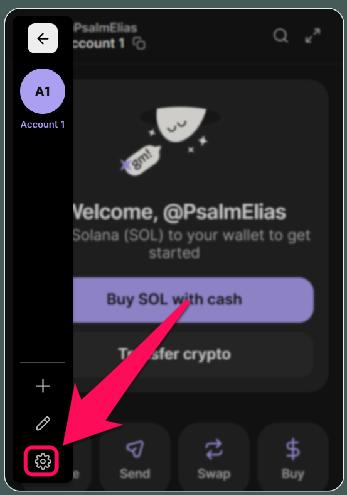
Step 2: Click Settings (gear icon) in the lower-left corner.
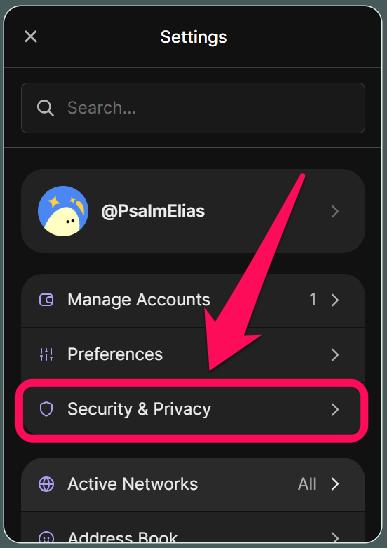
Step 3: Go to Security & Privacy.
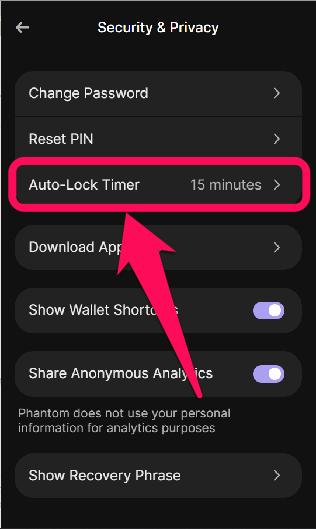
Step 4: Next, click on the Auto-Lock Timer button.
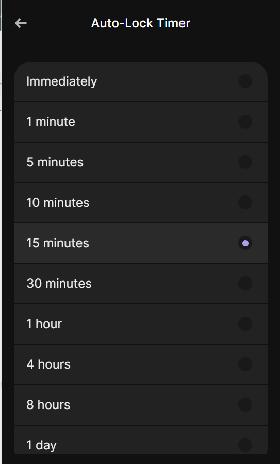
Step 5: Select your preferred timer from the available options.
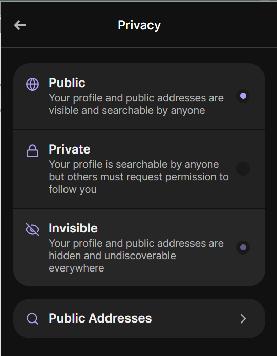
You can also control your wallet’s privacy by setting it to public, private, or invisible. Follow these steps to change your Phantom Wallet privacy settings:
Step 1: Click your profile avatar in the upper-left corner when you open the Phantom Wallet.
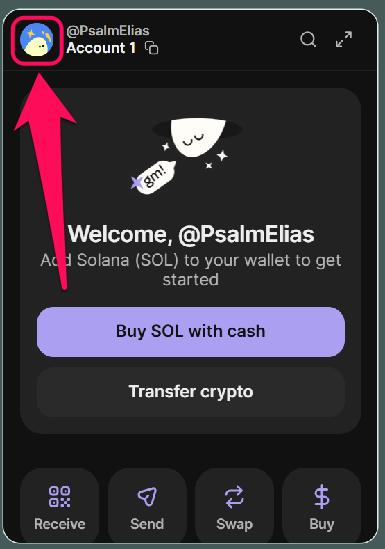
Step 2: Click Settings (gear icon) in the lower-left corner.
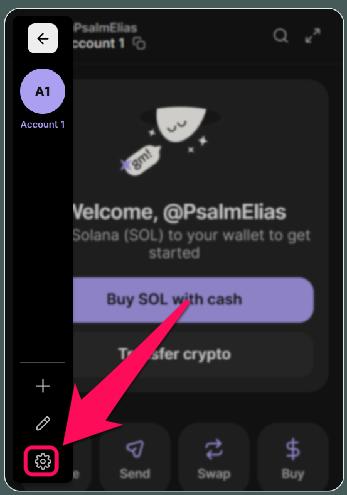
Step 3: On the settings page, click the section with your profile icon and username.
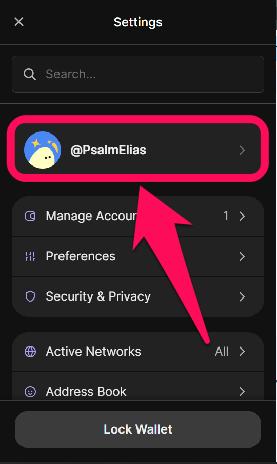
Step 4: Next, select “Privacy” under the Manage section.
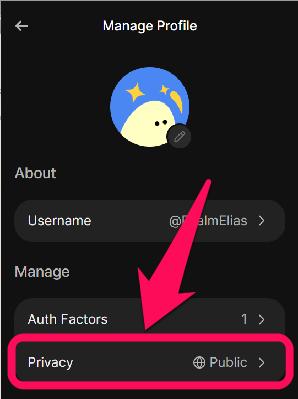
Step 5: Select the desired privacy setting (public, private, or invisible).
How to Back Up Your Phantom Wallet
Your Phantom wallet backup phrase, or secret recovery phrase (SRP), is the master key to your wallet. It grants access to all accounts in your wallet and is needed for recovery if you ever lose your device or forget your password. The steps below explain backing up Phantom wallet safely, which can be done in minutes:
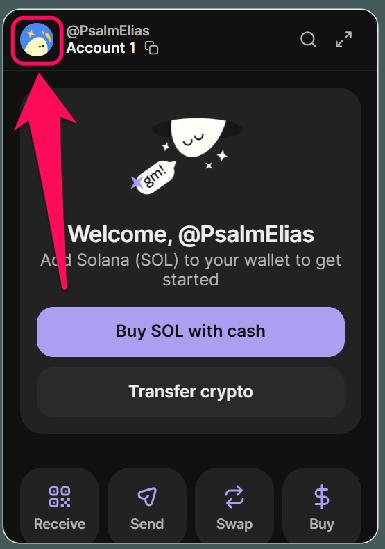
Step 1: Click your profile avatar in the upper-left corner.
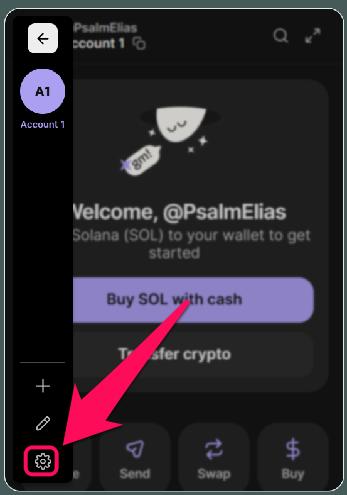
Step 2: Click Settings (gear icon).
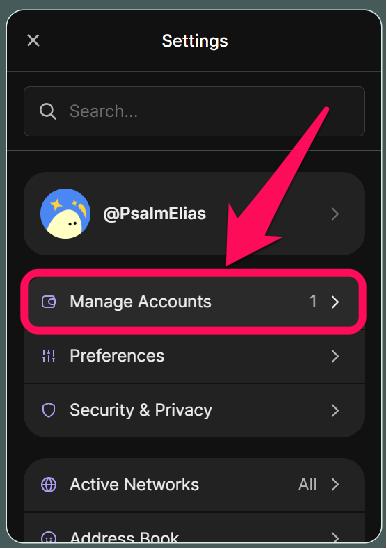
Step 3: Next, click Manage Accounts from the list of options under settings.
Step 4: Scroll through the list of accounts if you have more than one, and select the account you want to back up.
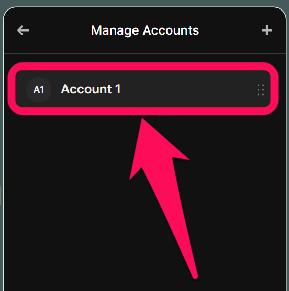
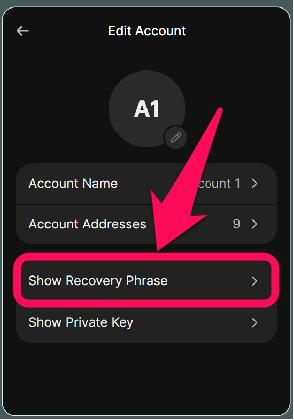
Step 5: Next, click Show Recovery Phrase.
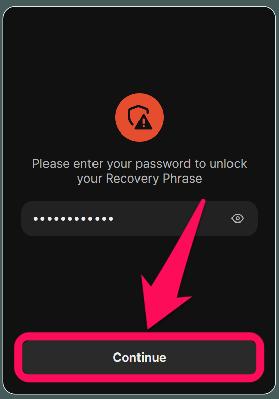
Step 6: Enter your password, then click Continue.
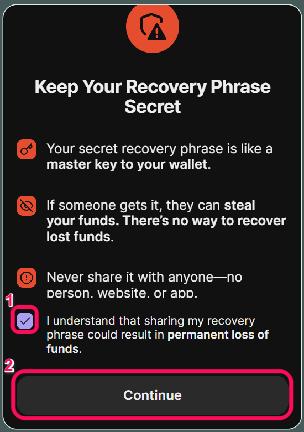
Step 7: Review and acknowledge the warning, then click Continue.
Step 6: View the recovery phrase and store it securely offline for easier access whenever you need it for account recovery.
What Happens if You Lose Access to Your Phantom Wallet?
If you lose access to the device where your Phantom wallet is installed, you can reinstall it on another device and recover your wallet. However, to do this, you must have previously completed Phantom wallet recovery phrase storage, particularly by backing it up offline. If you lose both your device and backup phrase, there is no other recovery option, and you’ll lose your funds forever. Therefore, ensure you secure and back up your Phantom wallet accounts before doing anything else.
Bottom Line
Protecting your Phantom wallet account from attacks is crucial to ensuring a smooth Web3 experience on the platform. As one of the most widely used and enticing SOL wallets, Phantom users must safeguard their accounts against prying eyes seeking to steal funds.
To secure and back up your Phantom wallet, ensure your password is strong, your wallet locks automatically after a short idle period, and your recovery phrase is safely stored offline. Once completed, check out our Phantom Wallet review for info on other features you can explore in the wallet.
FAQs
1. Can Phantom Wallet recover my funds without a recovery phrase?
No, without the secret recovery phrase, there is no way to restore your wallet and its funds.
2. Is it safe to store my recovery phrase digitally?
While digital storage is not a bad option, it is inadequate. Digital storage increases exposure to hacking and leaks, so offline storage is the safest option.
3. What should I do if my phone is lost or stolen?
Install Phantom Wallet on a new device as soon as possible, then restore your wallet using the secret recovery phrase. If the old device may be compromised, create a new wallet and transfer your funds into it.