


- •Phantom supports multiple accounts within one wallet installation.
- •Each account has a different public address and independent balances.
- •Creating multiple accounts helps to organize your portfolio and manage crypto like a pro.
Trading and managing multiple crypto assets on a single wallet can be confusing, whether you’re a professional or a beginner just starting out in the crypto space. Also, it poses a significant risk of errors due to excessive asset clustering in your wallet. Hence, if you’re managing multiple crypto activities, like trading diverse assets, NFTs, or dApps, creating an extra wallet in Phantom can make a difference in your Web3 journey. You can easily add a new account on Phantom Wallet to separate funds, organize transactions, and track portfolios clearly. Follow the easy steps in this article to securely add new accounts to your Phantom Wallet.
Can You Add Multiple Wallets in Phantom Wallet?
Yes, Phantom allows users to create multiple accounts within the same wallet setup. This way, users can manage multiple crypto accounts designated for specific purposes within the wallet at once.
All accounts are tied to the same secret recovery phrase (SRP), so you do not receive a new seed phrase for each newly added account. To effectively protect all accounts in your wallet, ensure you know how to reveal the secret recovery phrase in Phantom Wallet and back it up accordingly.
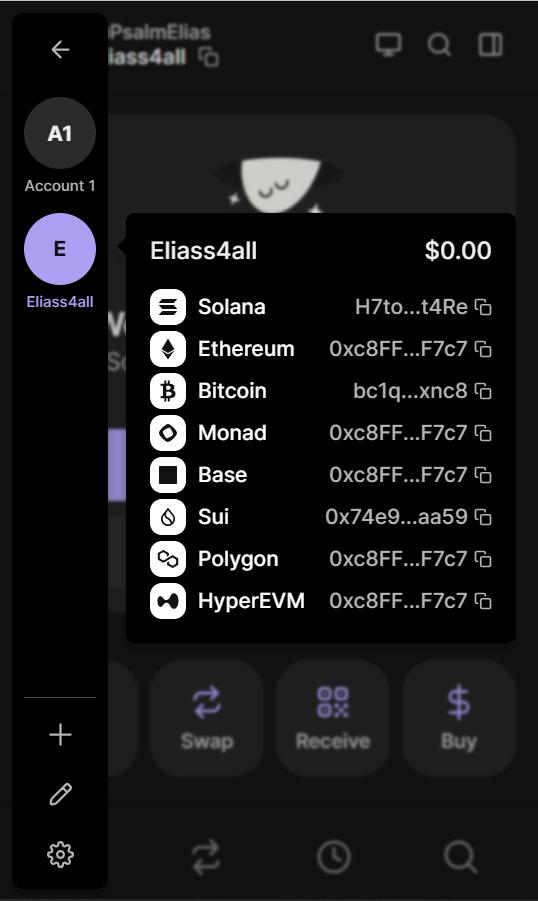
Users often create multiple accounts to separate long-term holdings funds, NFT storage, or different on-chain activities. So, Phantom Wallet multiple accounts have their own unique public addresses, transaction histories, and token balances. This way, you can manage different accounts holding unique crypto projects simultaneously within the same wallet setup in Phantom.
How to Add a New Account in Phantom Wallet (Browser Extension)
The steps below highlight how to add another account in Phantom Wallet browser extension within seconds:
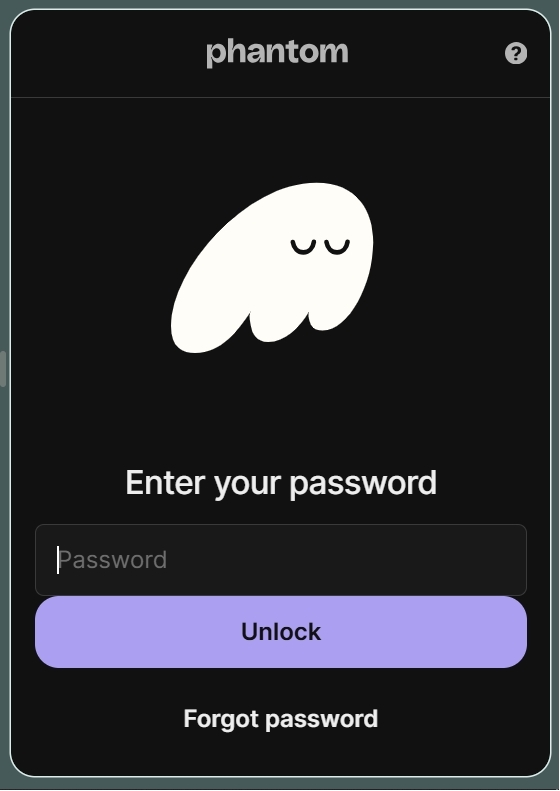
Step 1: Open the Phantom extension on your browser and log in to your account.
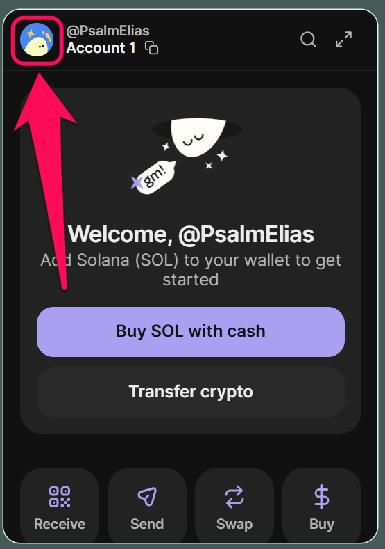
Step 2: Click your profile avatar displayed at the top left corner.
Step 3: Select Add Account (plus sign).
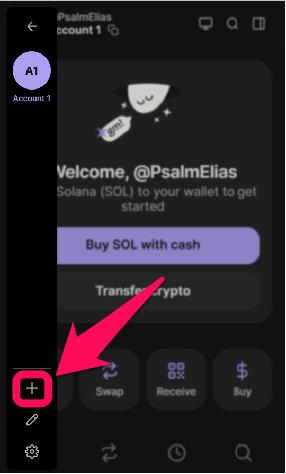
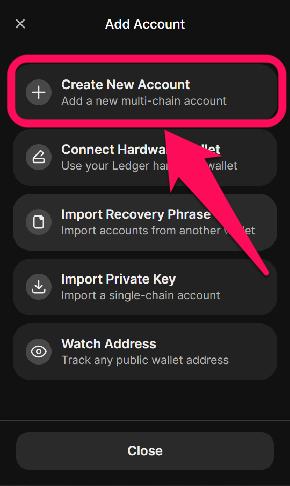
Step 4: Since you want to add a new account on Phantom Wallet, click the Create New Account option.
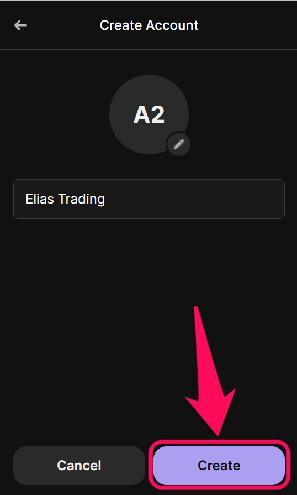
Step 5: Follow the prompts to enter a name, then click Create to add your new wallet account.
How to Add a New Account in Phantom Wallet (Mobile App)
To create new wallet account in Phantom mobile app easily, follow the steps below:
Step 1: Launch the Phantom mobile app and unlock your wallet.
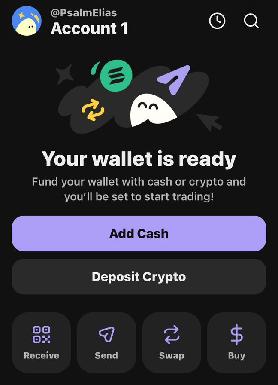
Step 2: Tap your profile avatar in the upper-left corner.
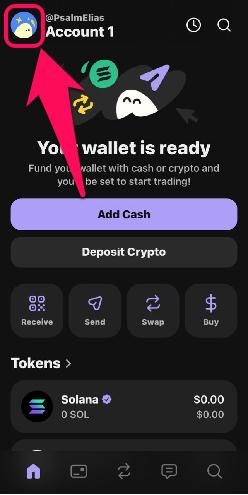
Step 3: Click Add Account at the bottom of the screen.
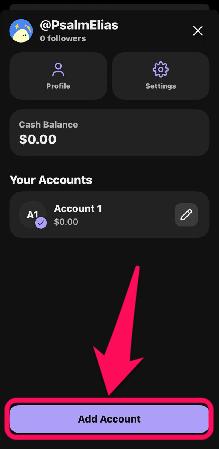
Step 4: Select Create New Account to add a new account to your Phantom wallet.
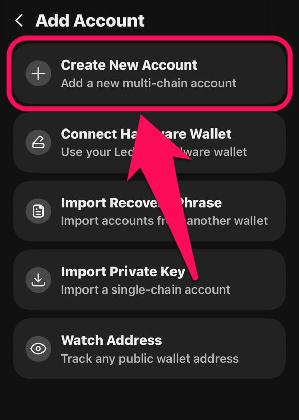
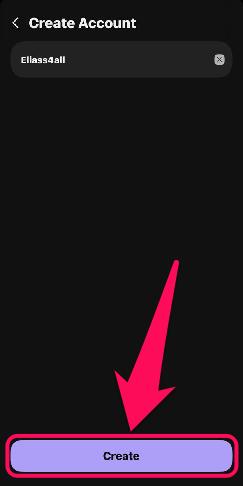
Step 5: Follow the on-screen prompts to input a name and click Create to complete the process.
How Switching Accounts Works in Phantom Wallet
After adding a new account to your wallet, switching between them is simple. Doing this in Phantom is different from creating a new wallet or importing accounts into the wallet. On both the Phantom browser extension and mobile app, you only have to access the account center to switch accounts whenever you want.
Simply tap your avatar to open the account selector section, then choose the account you want to use. The wallet instantly shows that account’s portfolio, address, balances, and activity. All accounts remain tied to the same recovery phrase and stay accessible within the wallet installation.
Bottom Line
Adding more accounts to your wallet is the ideal way to organize your crypto portfolio and keep things smooth like a pro. You don’t need an entirely new wallet to add a new account on Phantom Wallet. The wallet generates new accounts and addresses from a single secret recovery phrase. This way, you can maintain multiple portfolios, DeFi projects, and balances under a single secure backup.
As your portfolio grows, prioritize security and check out our guide on securing and backing up your Phantom Wallet to ensure your digital assets remain under your control.
FAQs
1. Does creating an account in Phantom cost any fees?
No, creating additional wallet accounts in the Phantom Wallet is entirely free.
2. What happens to my additional accounts if I restore my wallet using the same recovery phrase?
When you restore a wallet using the same secret phrase, all previously created accounts can be recovered because they are tied to that phrase.
3. Can I hide/remove an account in Phantom Wallet?
Yes, you can remove unused accounts from the Phantom Wallet temporarily. You will be able to re-derive the account using your mnemonic/seed phrase whenever you need the wallet.