


- •Resetting Phantom removes local data but does not delete your crypto funds.
- •Your secret recovery phrase is the only key to restoring your wallet after a reset, so keep it safe.
- •The process is straightforward and can be achieved on both the mobile app and extension.
If you’re locked out of your Phantom wallet, FaceID/biometrics aren’t working, experiencing security breaches, or encountering technical issues like your balance not loading, resetting may be your last resort. However, you must put some measures in place to ensure it is done right. Resetting Phantom deletes all wallet data on your device, including local, unbacked-up recovery phrases. If done carelessly, you could permanently lose your account and funds. Follow this guide to learn when and how to securely reset Phantom Wallet on mobile and in the browser extension.
What to Know Before You Reset Your Phantom Wallet
Resetting is necessary when you’ve forgotten your wallet password or if the app’s data has become corrupted. After a reset, the Phantom Wallet application returns to its initial state, as if it were freshly installed. Before proceeding, ensure you have your Phantom secret recovery phrase (SRP) available before you hit the reset button.
This is because once you reset, Phantom logs you out completely, and you’ll need the recovery phrase to restore access to your wallet. Phantom does not store the recovery phrase in its servers, so it is ideal to back up your Phantom Wallet SRP before proceeding.
Although resetting Phantom removes all data stored on the device, it doesn’t affect your funds. Your assets are secured on the blockchain and are tied to your secret recovery phrase. Resetting without access to your secret phrase could result in the loss of funds and keep your Phantom wallet locked out forever. If you can still access your wallet, secure the SRP, as this determines if the reset is safe or irreversible.
How to Reset Phantom Wallet on Browser Extension
If you’re using the Phantom extension for desktop, follow the steps below to reset your wallet for a fresh start:
Step 1: Open the Phantom Wallet extension in your browser and log in to access your account if you remember the password.
Step 2: Click your profile avatar in the upper-left corner of the homepage.
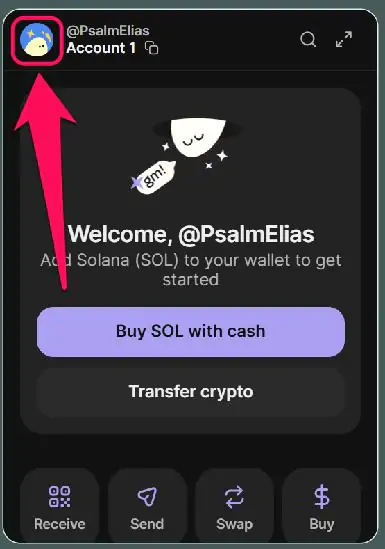
Step 3: Click the Settings icon.
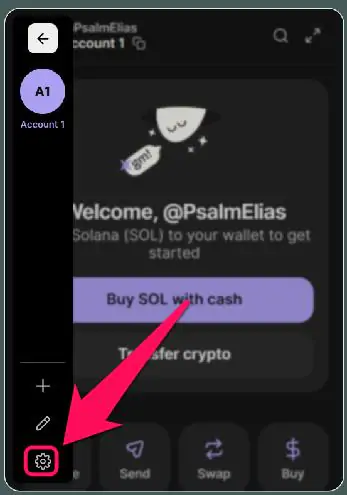
Step 4: Select Security & Privacy from the settings list.

Step 5: Scroll down and click Reset App.
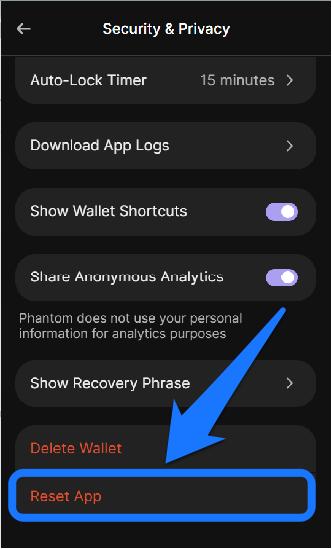
Step 6: Finally, click Continue to finalize the reset process.

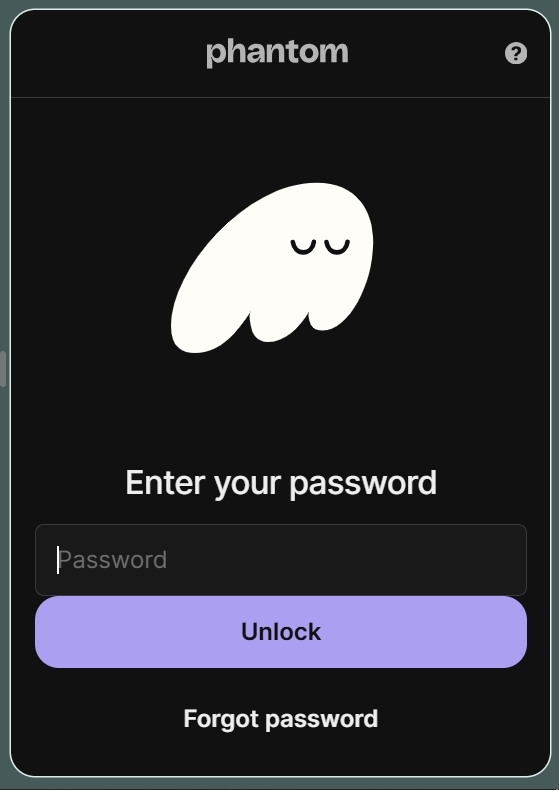
For users who do not remember their password, but do have their Phantom Wallet SRP with them, can follow the steps below to restore access to their Phantom Wallet:
Step 1: Click on the “Forgot Password” option.

Step 2: Click on “Reset and Wipe App” to reset your wallet.

Step 3: Your Phantom wallet will be reset, and you will be taken to the Phantom Wallet Welcome window.

Step 4: Next, click “I already have a wallet” to get back in, just like a Phantom Wallet reinstall and restore process.
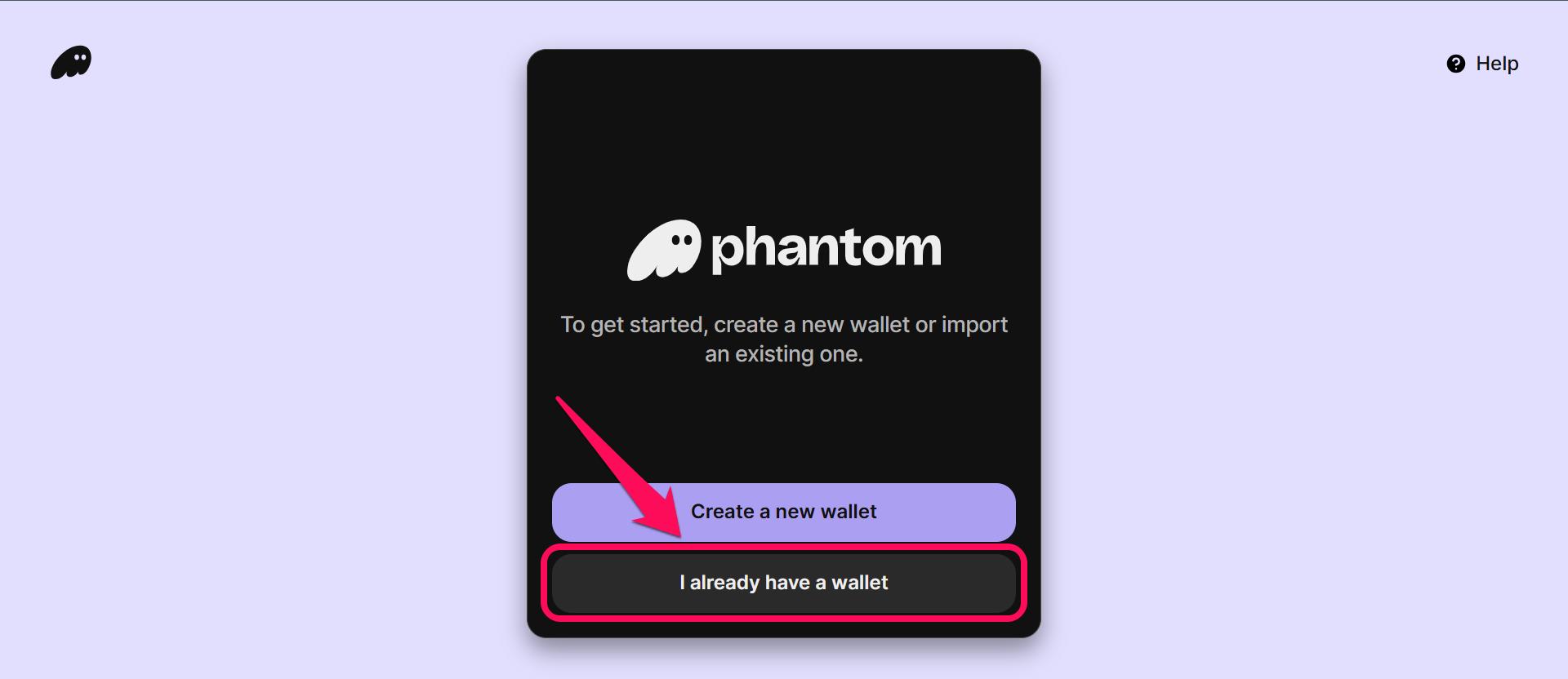
Step 5: Select your import method, that is, “Import Recovery Phase”.

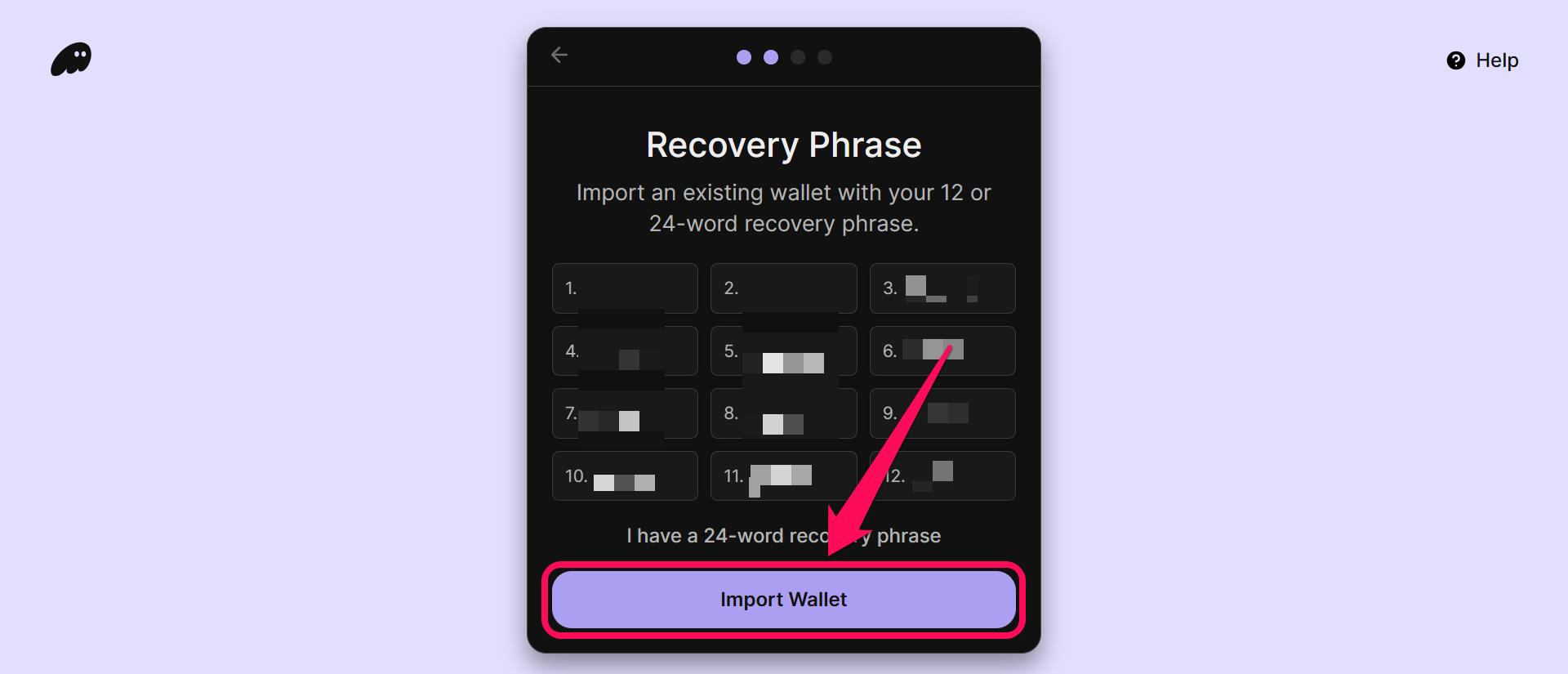
Step 6: Carefully enter your 12- or 24-word seed phrase and click Import Wallet.
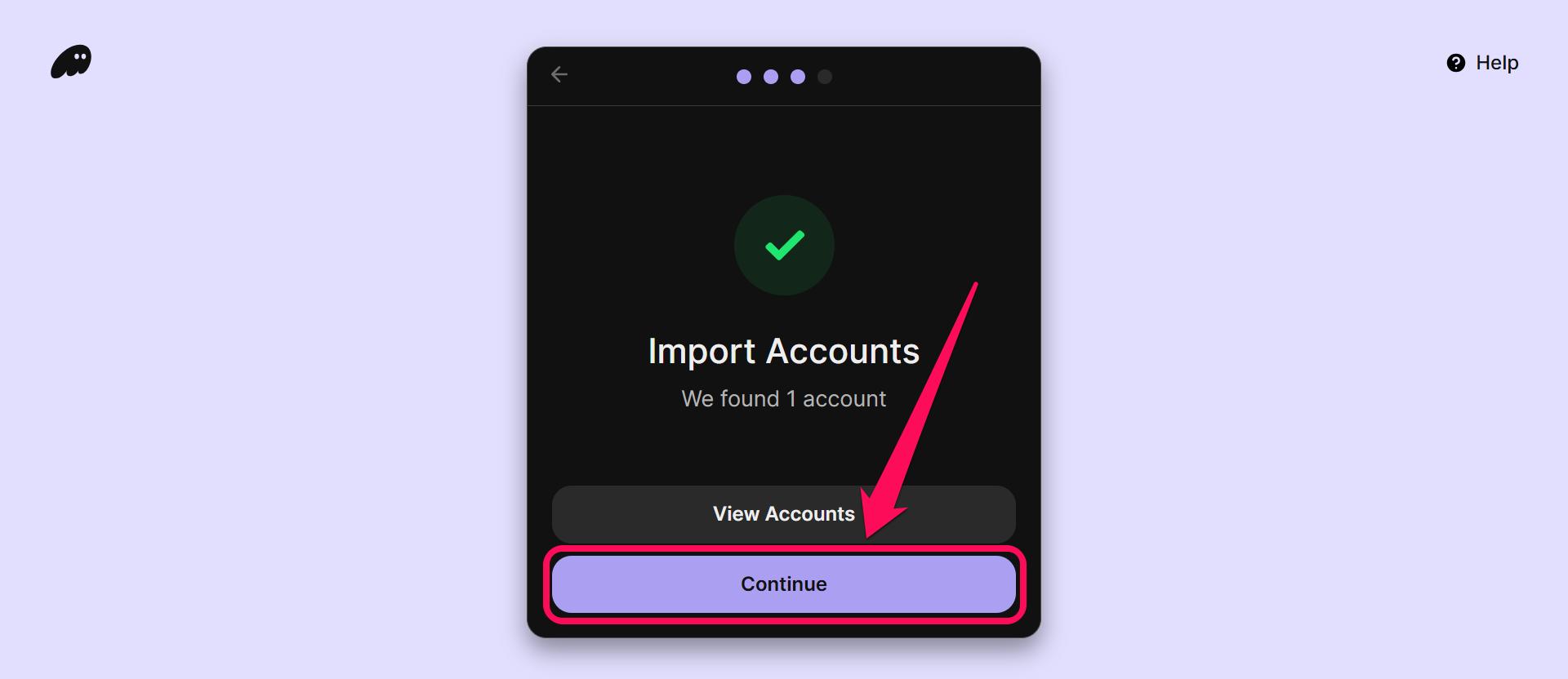
Step 7: After that, all accounts tied to the seed phrase will show up; click Continue to proceed.
Step 8: Finally, enter a new password, confirm it, and click on Continue to start using your wallet.

How to Reset Phantom Wallet on Mobile App
Resetting Phantom on your phone restores the app to default mode, as though you just installed it. Follow these steps to get it done:
Step 1: Launch the Phantom mobile app and enter your wallet.
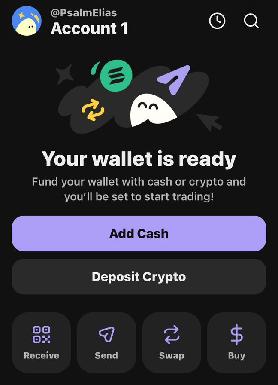
Step 2: Tap your profile avatar in the upper-left corner.
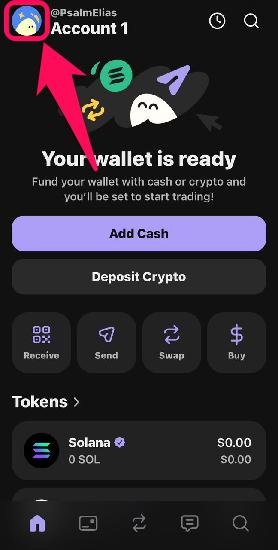
Step 3: Go to the Settings page.

Step 4: Choose the Security & Privacy option.
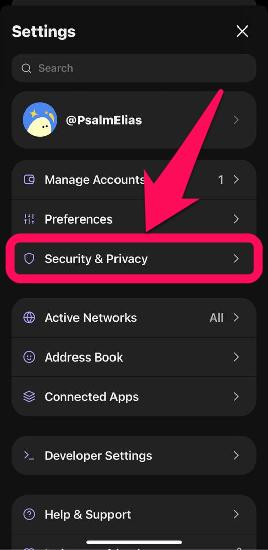
Step 5: Scroll to the bottom of the page to tap Reset App.

Step 6: Lastly, click Continue to complete the process.

What to Do After You Reset Phantom Wallet
After resetting your wallet, complete the Phantom Wallet account recovery process to restore access to your account. Once in the wallet, securing the seed phrase should be your topmost priority. The secret phrase remains the only way to restore access, including when you want to recover Phantom Wallet on a new device.
Hence, find your Phantom wallet recovery phrase and store it offline. For added security, keep more than one physical copy of the handwritten seed phrase in separate secure locations. Avoid relying on screenshots, cloud storage, note apps, or email drafts to store the seed phrase, and never share it with anyone, including Phantom Support.
Bottom Line
Resetting your Phantom wallet resolves most technical issues at once and restores it to its default settings. However, you must have your secret recovery phrase readily available after the process is complete, as it gives you Phantom Wallet restore access and prevents you from losing funds.
Once you reset Phantom Wallet, secure and back up your wallet seed phrase using the instructions in our step-by-step guide. For seedless wallets, ensure you have access to the email and 4-digit PIN used to create the wallet before resetting.
FAQs
1. Should I reset the Phantom wallet if it starts acting buggy?
Yes, you can reset your Phantom wallet if it doesn’t perform as it used to. However, check if you are using the latest version and update if applicable before deciding to reset.
2. Can I reset Phantom Wallet without a recovery phrase?
Although it is possible to reset the Phantom wallet without entering the seed phrase in the process, you MUST have your seed phrase if you want to recover the accounts in the reset wallet.
3. What if resetting Phantom deletes my crypto?
It is impossible for your crypto to be deleted due to a wallet reset, but you could lose your assets if you do not have the secret recovery phrase to restore your wallet after a reset.