


- •Rabby wallet extension is available for free download on your favorite Chromium-based browser.
- •The wallet auto-detects networks when you connect to dApps, enhàncing UX and convenience.
- •You can create a new wallet or import existing wallets using your secret recovery phrase.
Web3 users often spend more time switching networks in wallets than making trades. Rabby, a specialized multi-chain wallet for the EVM ecosystem, solves this by letting users interact with multiple dApps, swap tokens, and manage them all in one place. To enjoy its features, you must find, locate, and install the wallet, then create a personalized account to explore DeFi at your convenience. This post provides a simple, step-by-step guide on how to install and set up the Rabby wallet extension.
Why do I Need Rabby Wallet?
Developed by DeBank, the Rabby wallet is built with a focus on convenience and security, setting it apart from other wallets. If you want a non-custodial wallet with multichain compatibility, the platform supports over 90 networks and 10,000+ tokens. With the most supported protocols, Rabby automatically displays your DeFi assets, including liquidity pools (LPs), lending positions, staking, and more.
Unlike traditional wallets, Rabby automatically detects and switches networks when you connect to a dApp. It simulates transactions before confirming, alerts you on suspicious contracts, and tracks your token approvals, which you can revoke for free. Now that you know why you need the wallet, let’s proceed to install and set up your Rabby wallet.
Steps to Install And Set Up Rabby Wallet Browser Extension
Rabby wallet is available as an extension, and you can add it to your favorite Chromium-based browser for free via a series of straightforward, easy steps:
Installation
Step 1: Open your browser and navigate to the official Rabby wallet website.
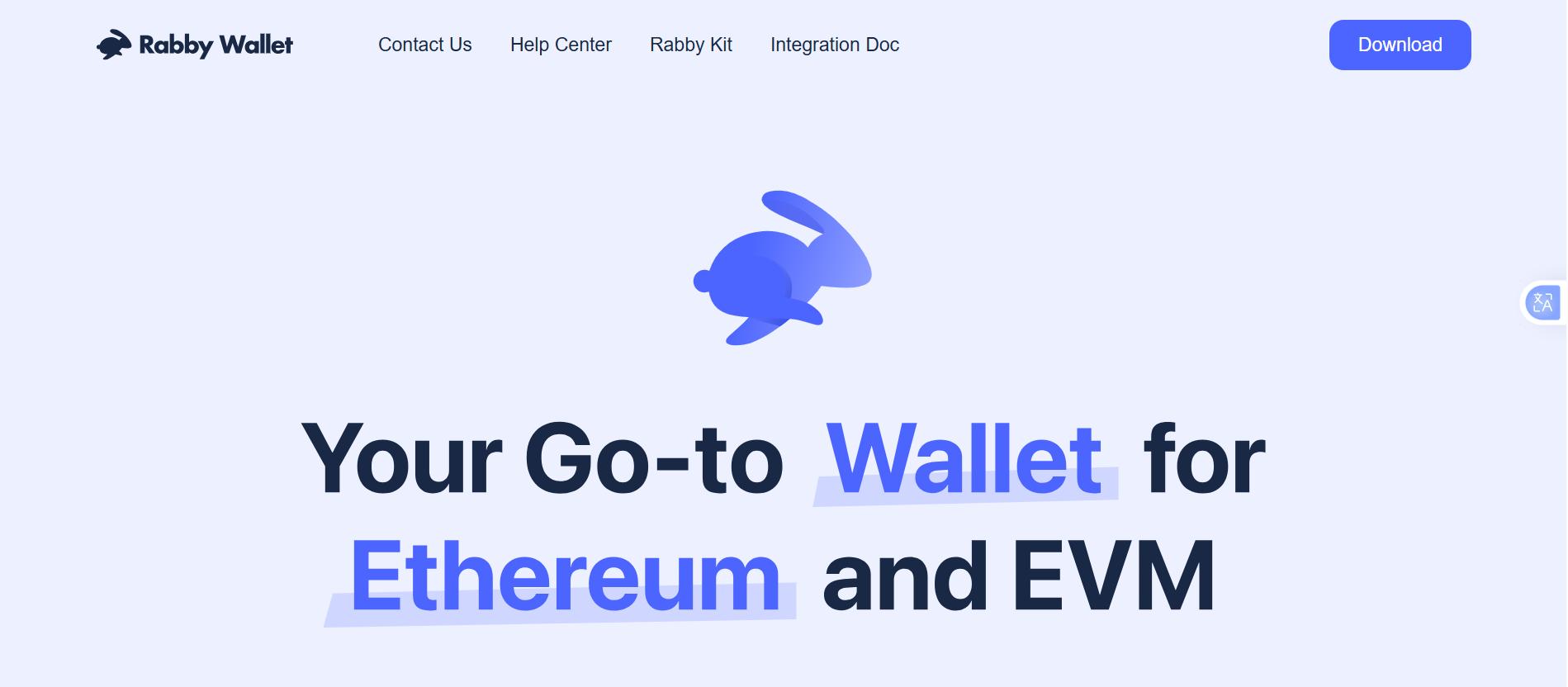
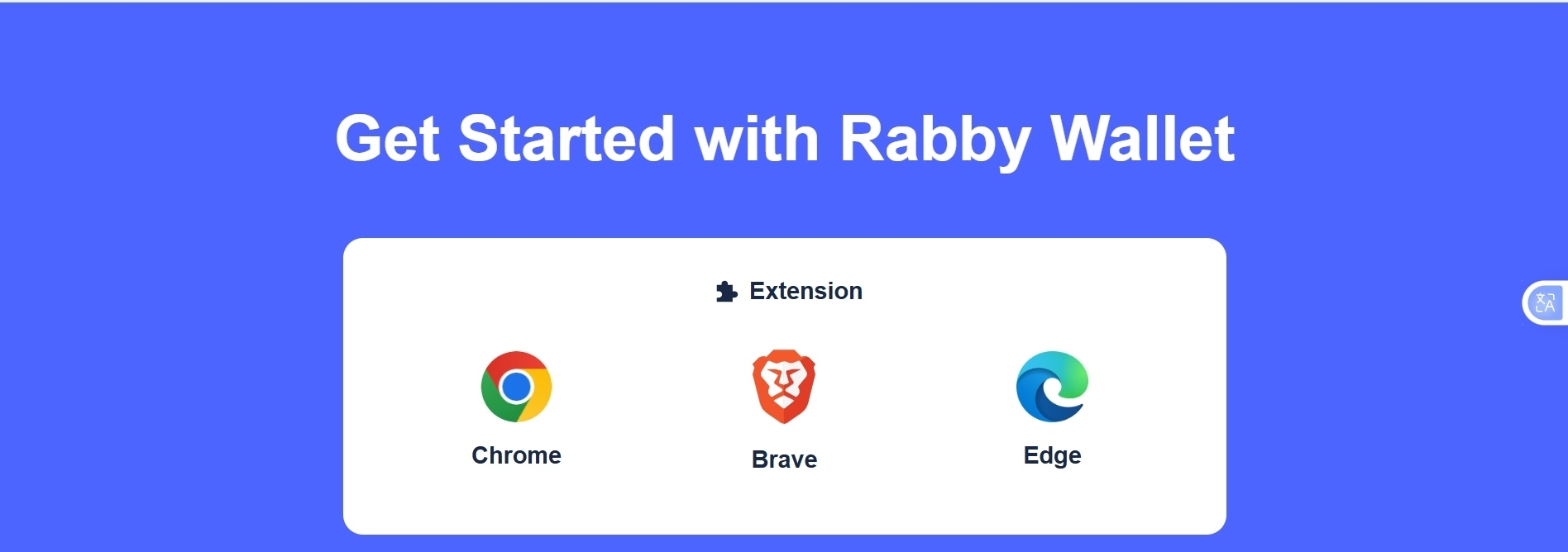
Step 2: Scroll down to the Extension option and click Download for Chrome.
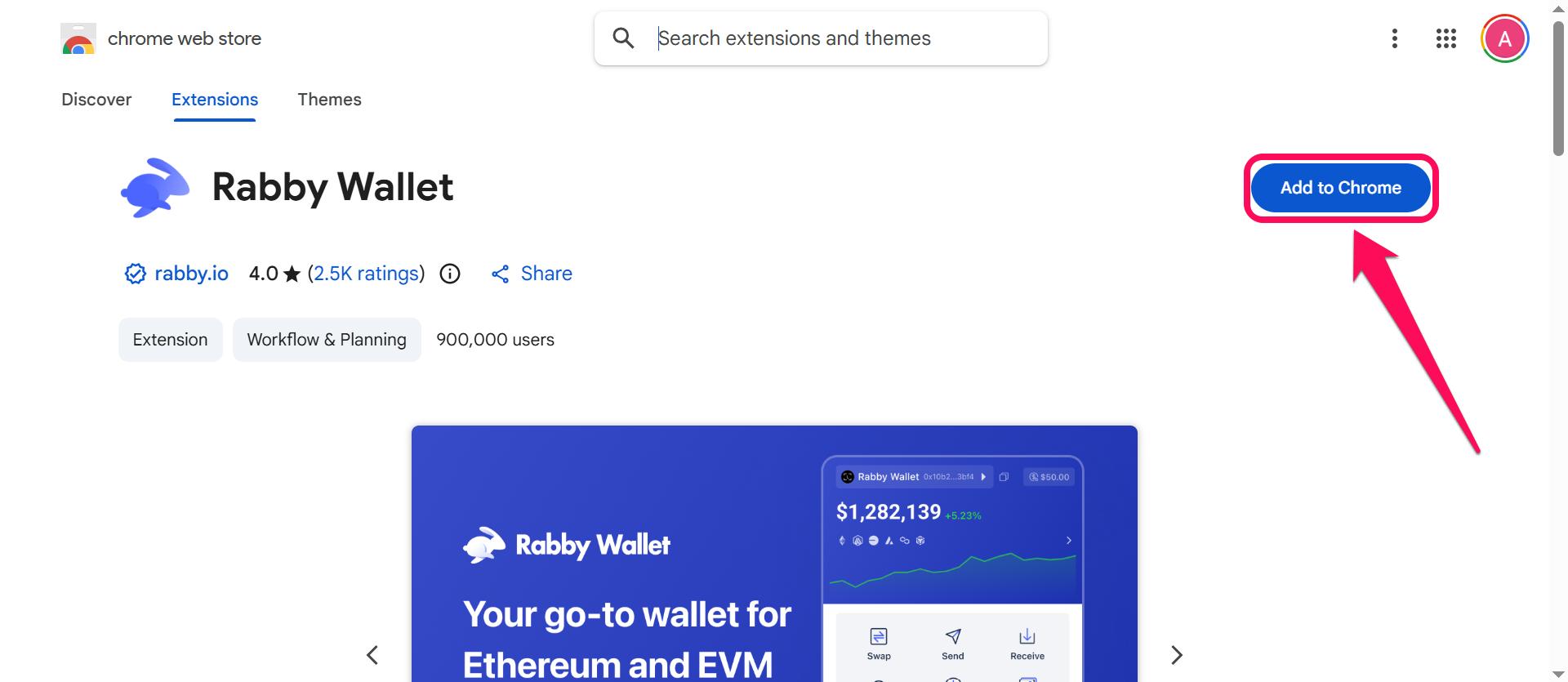
Step 3: On the web store, click Add to Chrome.
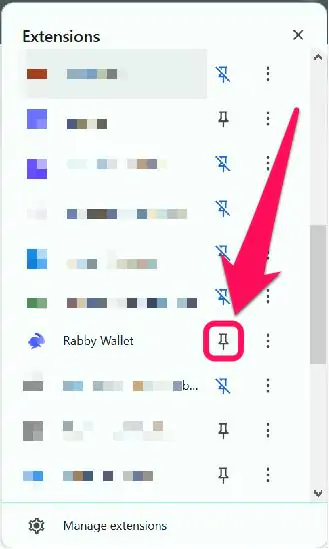
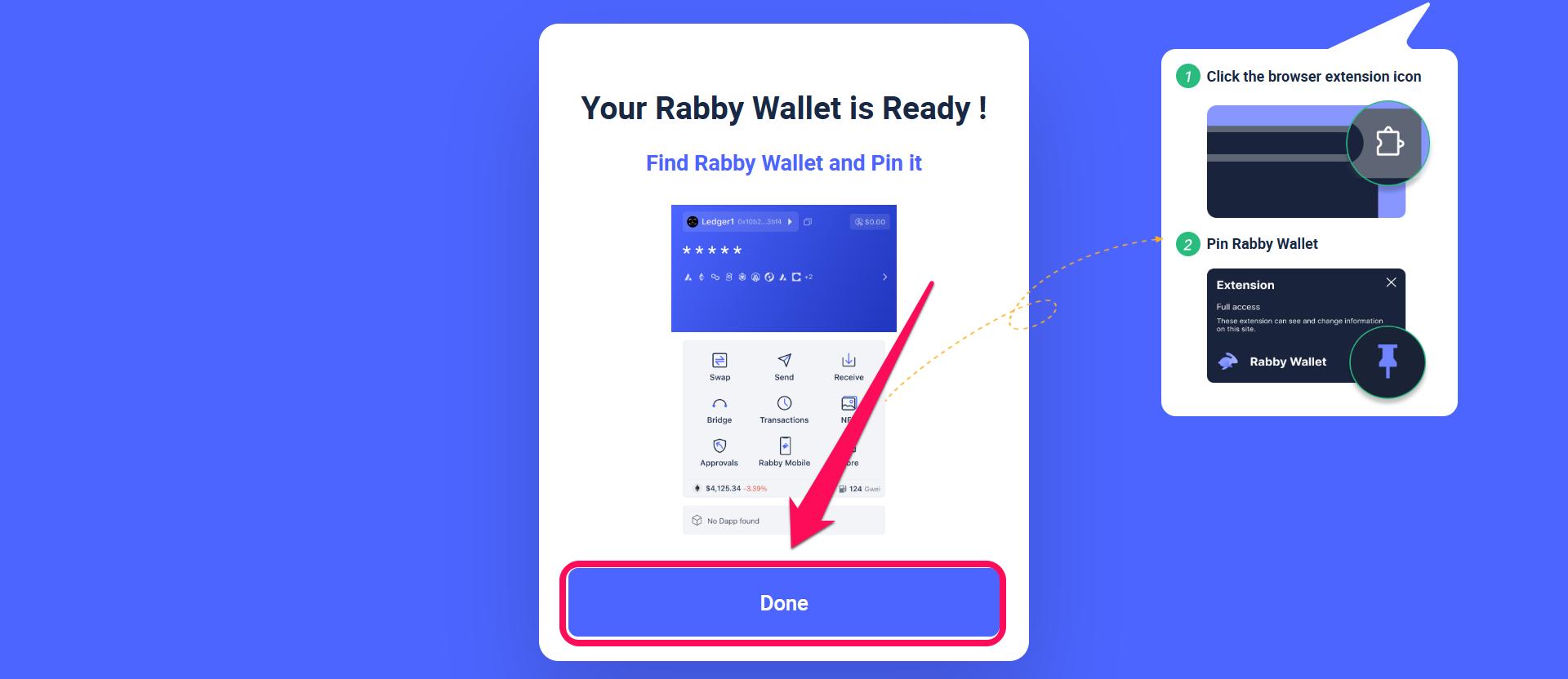
Step 4: When the installation is complete, pin the extension to your browser tab for easier access.
Step 5: Open the extension and click Next to begin the setup process.
Wallet Creation
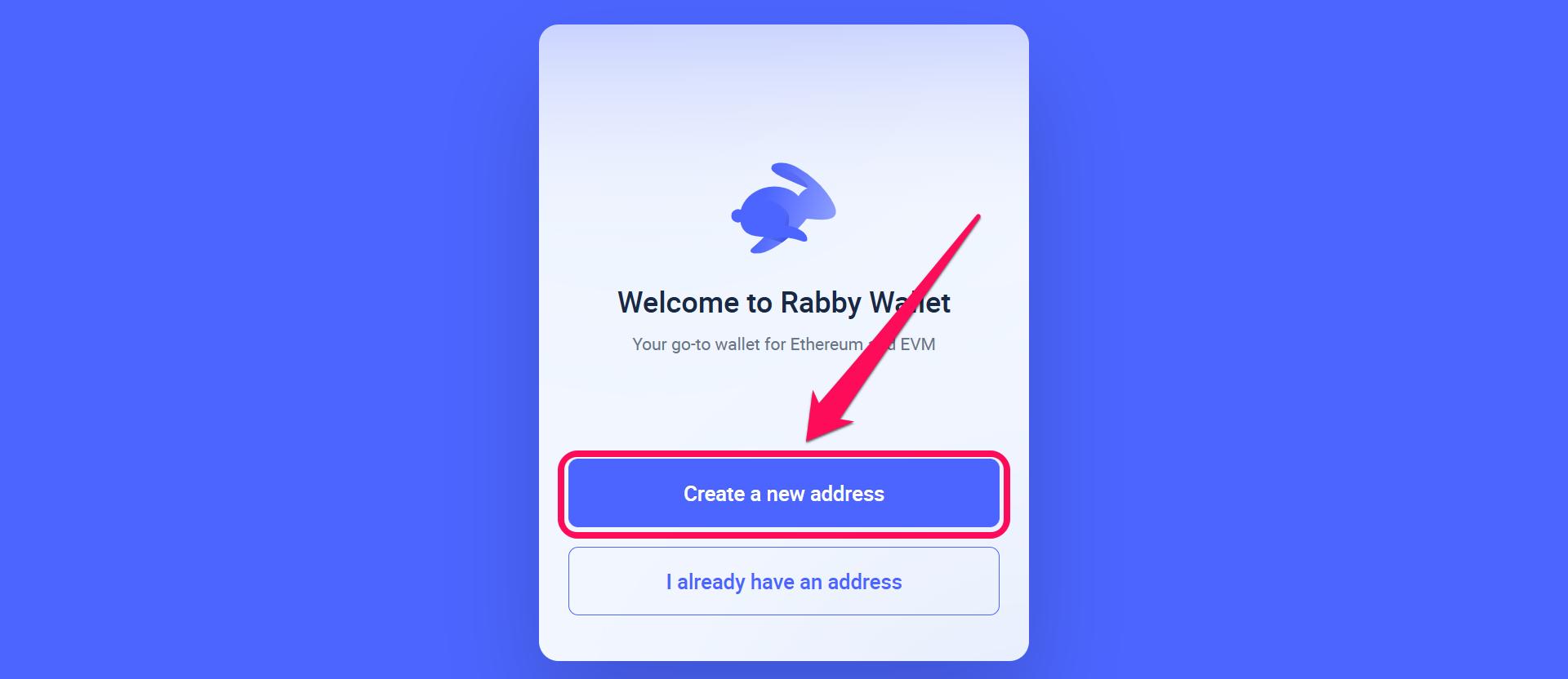
Step 1: Open the Rabby wallet extension and click Create a New Address.
Step 2: Click the Show Seed Phrase option to reveal your account’s secret recovery phrase (SRP). Once you’ve seen it, write it down in the exact order and store it securely offline.
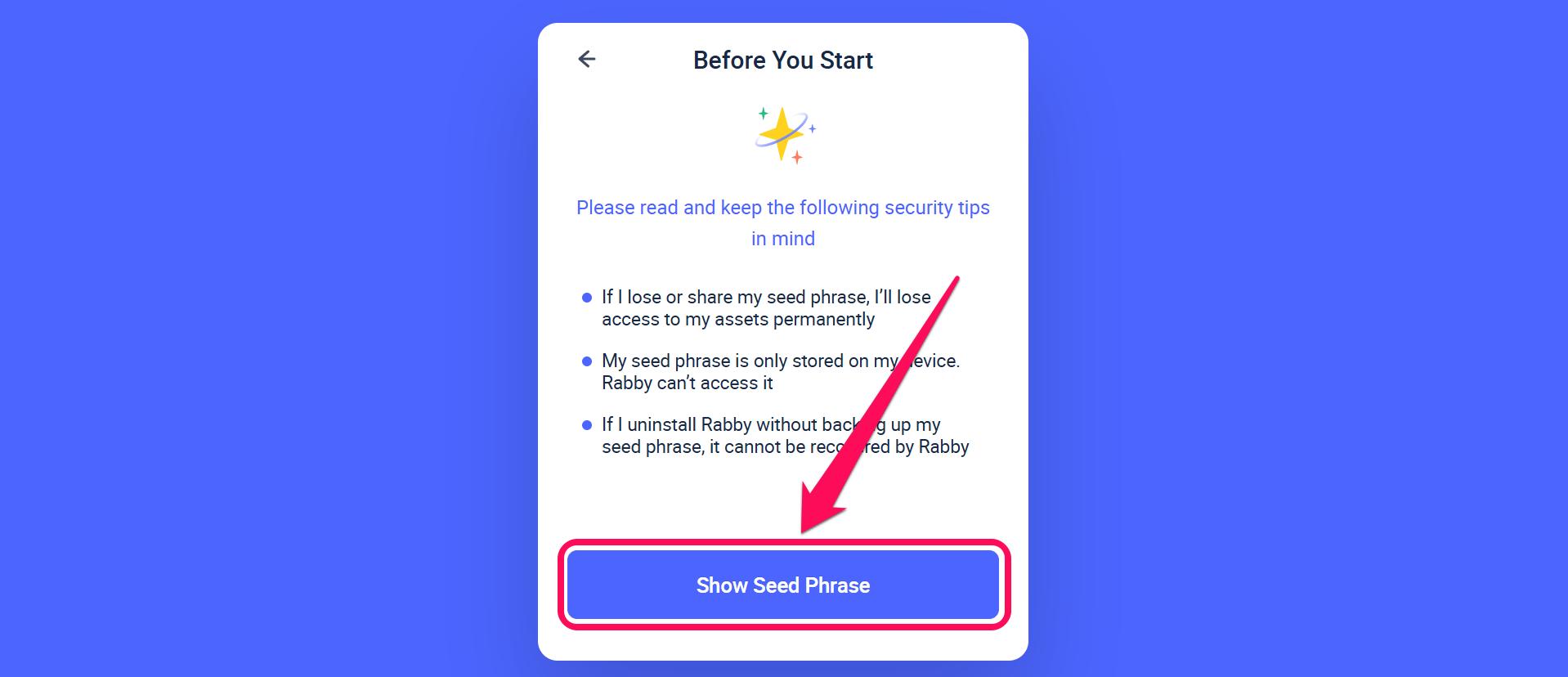
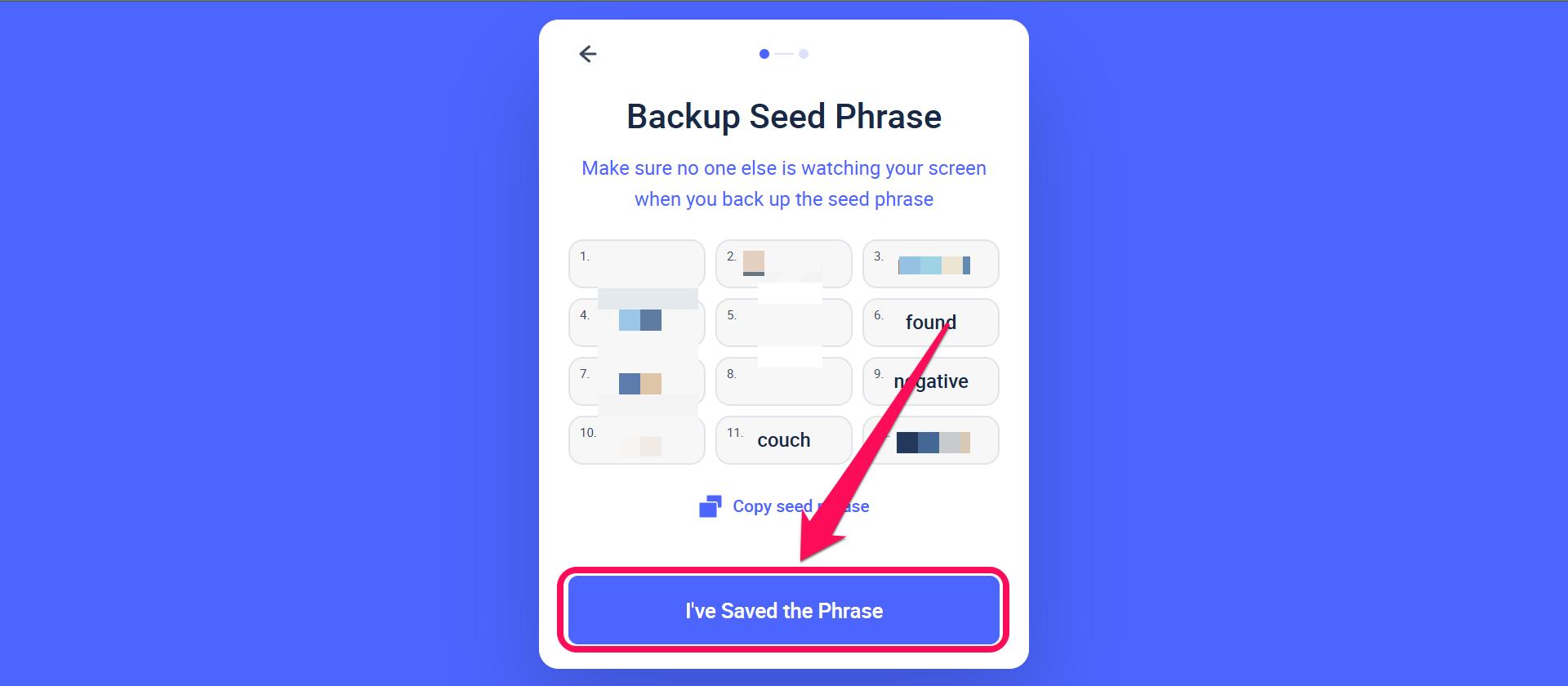
Step 3: Copy and confirm SRP safety by clicking I’ve Saved the Phrase.
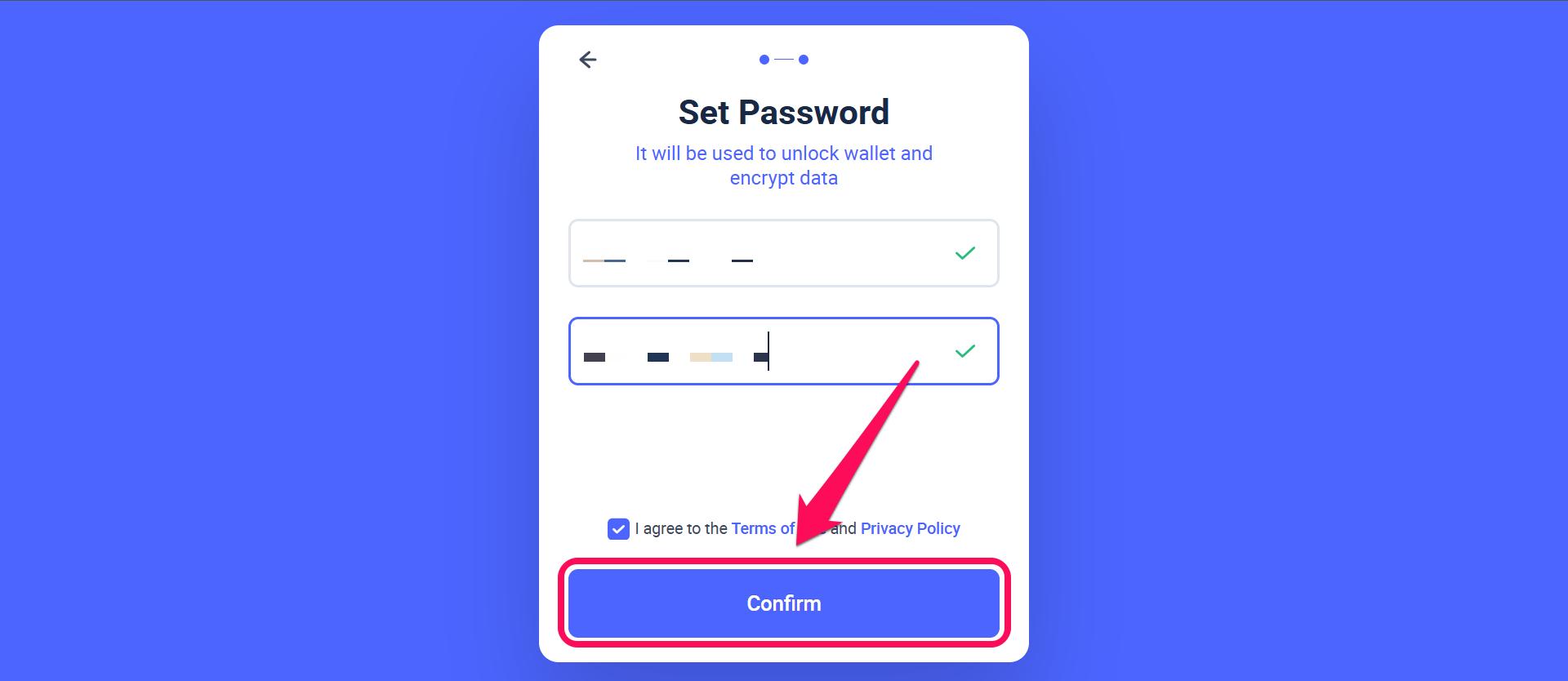
Step 4: Create a secure password for your wallet. Double-check and Confirm the password before continuing.
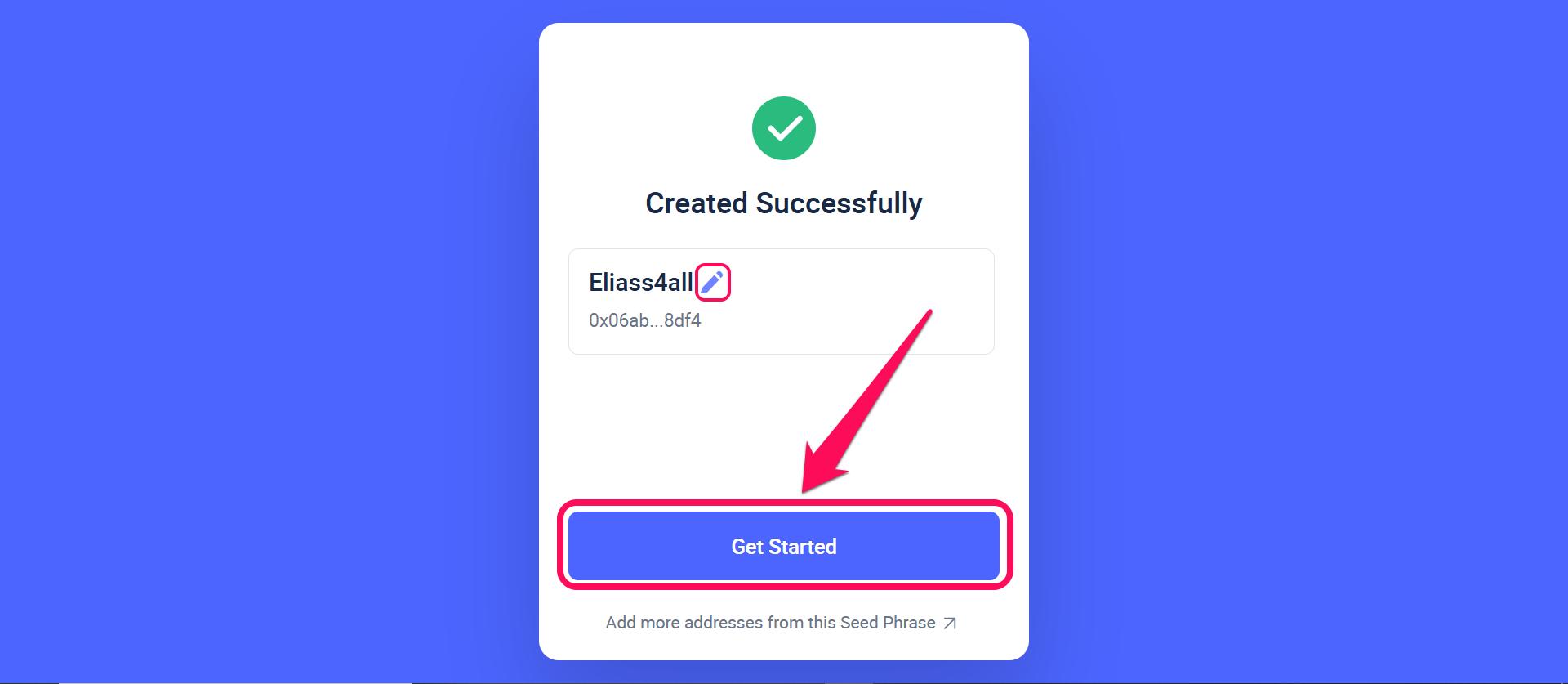
Step 5: A list of addresses associated with your seed phrase is displayed. Click the pen icon next to the name to change or edit the wallet name, and click Get Started to proceed.
Step 6: Click Done to complete the process. Once you reach this stage, your account is ready for nonstop use.
Quick Tour of Rabby Wallet
Once inside the Rabby wallet dashboard, you’ll see a portfolio view of all your tokens, DeFi, and NFTs tidily stacked in one place. The wallet also displays tabs with visible labels for sending, receiving, and swapping crypto with one click.
On the settings page, you can manage your account, edit your name, password, and addresses, and explore additional personalization features. The in-app browser also allows you to visit and connect your favorite dApps to your wallet seamlessly.
Bottom Line
You can install and set up Rabby Wallet if you want an easy setup process with full control over your funds. The wallet resolves management issues like blind approvals, frequent network errors, and managing wallets across multiple networks. It features strong security protocols, an intuitive UI, and multichain compatibility for versatility.
However, if you prefer to compare other options before committing to Rabby, you can always explore other highly rated alternatives. Check out the complete list of top-performing self-custody solutions in our guide on the best cryptocurrency hot wallets.
FAQs
1. Can I use the Rabby wallet on my mobile phone?
Yes, the Rabby wallet is also available as a mobile app for iOS and Android devices. Visit the appropriate mobile stores to download and get started.
2. Can I connect Rabby to hardware wallets?
Yes, Rabby supports hardware connection for users who want an extra layer of security.
3. Is MetaMask better than Rabby?
Both MetaMask and Rabby are smart choices for the Web3 ecosystem. If you’re holding stablecoins and making occasional transactions, MetaMask works fine. If you’re actively trading, managing multiple chains, or concerned about security, Rabby is worth the switch.