


- •Phantom can be configured as the default EVM wallet in supported browsers.
- •Once set, Phantom automatically handles connection requests, even if a dApp shows “Metamask”.
- •This setting is available only in the Phantom browser extension.
If you use multiple EVM wallets, connecting to dApps often poses a common issue. For instance, you click “Connect Wallet” on a dApp, and Metamask pops up, even though you prefer to use Phantom as your go-to wallet. This happens when multiple EVM wallets are installed, connection conflicts can occur. The wallet set as default in its settings is usually prioritized when a dApp tries to connect. To solve this, however, you must set Phantom as default EVM wallet for your device. This guide provides practical steps to set Phantom Wallet as the default app wallet so it handles connection requests automatically.
What Does Setting Phantom as the Default Wallet Mean?
When multiple wallets are installed in a browser, decentralized apps detect them and choose one to connect with. The selected wallet is usually the “default app wallet”. If you haven’t set your preferred wallet as default, browsers usually use the first wallet you installed as default for dApp connections.
If MetaMask opens every time you try to connect, your browser is prioritizing it, which means you need to reset it to use Phantom as primary wallet instead of MetaMask. Once you make Phantom Wallet the default wallet, it will handle connection prompts automatically and reduce unnecessary wallet pop-ups.
Can You Set Phantom As the Default Wallet?
Yes, you can set Phantom as the primary browser wallet in supported browsers where the Phantom extension is installed alongside other crypto wallets.
Once you set Phantom Wallet as the default app wallet, it automatically responds to dApp connection requests that would have prompted wallet selection pop-ups or trigger MetaMask. However, this setting applies only to the Phantom browser extension and doesn’t work the same way on the mobile app.
If you’re comparing Phantom vs MetaMask default wallet behavior, the difference comes down to which extension the browser prioritizes for EVM connections. But once you make Phantom default wallet for dApps, your browser automatically selects it whenever you try to connect.
How to Set Phantom as the Default Wallet (Browser Extension)
To make Phantom the default wallet on the browser extension version, follow the steps below:
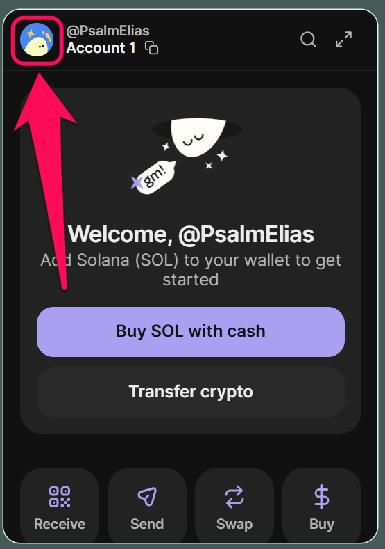
Step 1: Open the Phantom browser extension, then click your profile avatar in the top-left corner.
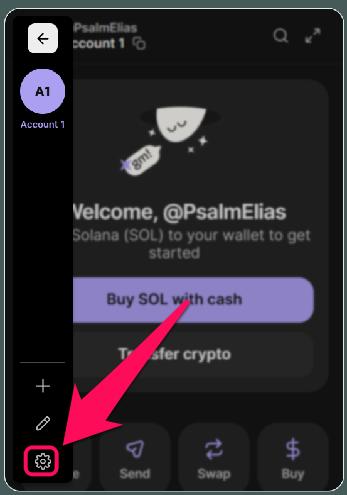
Step 2: Head to the Settings section.
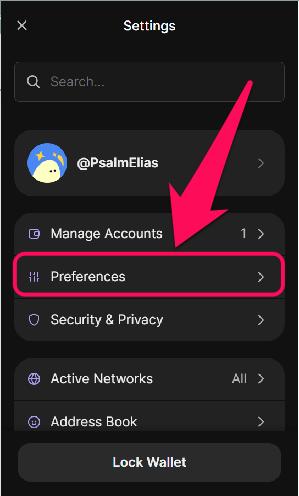
Step 3: Click Preferences.
Step 4: Click Default App Wallet under preferences settings.
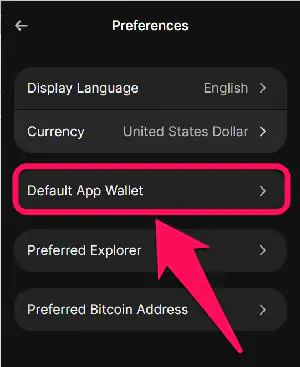
Step 5: Select Phantom, then refresh and reconnect to dApps to apply your changes.
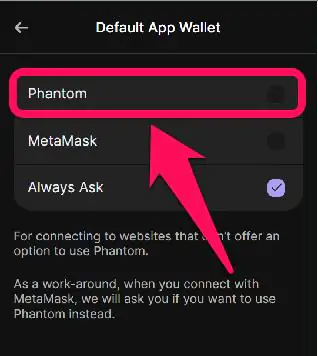
If the App Doesn’t Support Phantom Yet
Some dApps only show Metamask as the available wallet option for connection, so you might be wondering how to use Phantom in such situations. However, if Phantom is set as your default wallet, selecting Metamask will still trigger Phantom to handle the connection request. This is because once configured as the default browser EVM wallet, Phantom registers itself as the sole EVM provider in the browser. However, this only happens if Phantom is properly installed, enabled, and set as the default app wallet on the browser.
Separate Phantom From Metamask
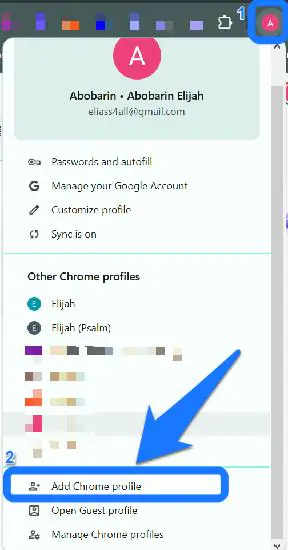
If you keep experiencing connection conflicts between Phantom and Metamask, separating both wallets can help. This gives each wallet its own isolated environment, so your browser only detects the wallet you prefer for dApp connections at any time. To separate both wallets, you can either disable Metamask temporarily or, better still, move Phantom to a new Chrome Profile to make Phantom default instead of MetaMask:
Step 1: In Chrome, select your profile icon in the upper right, and tap Add Chrome Profile.
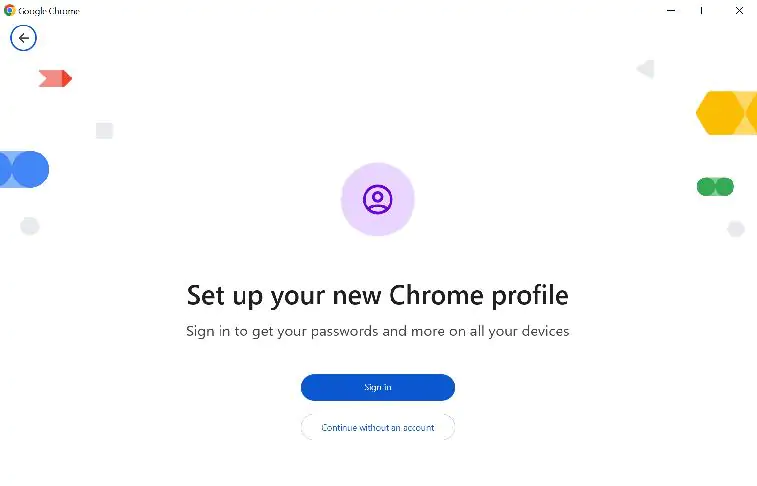
Step 2: Set up your new Chrome Profile.
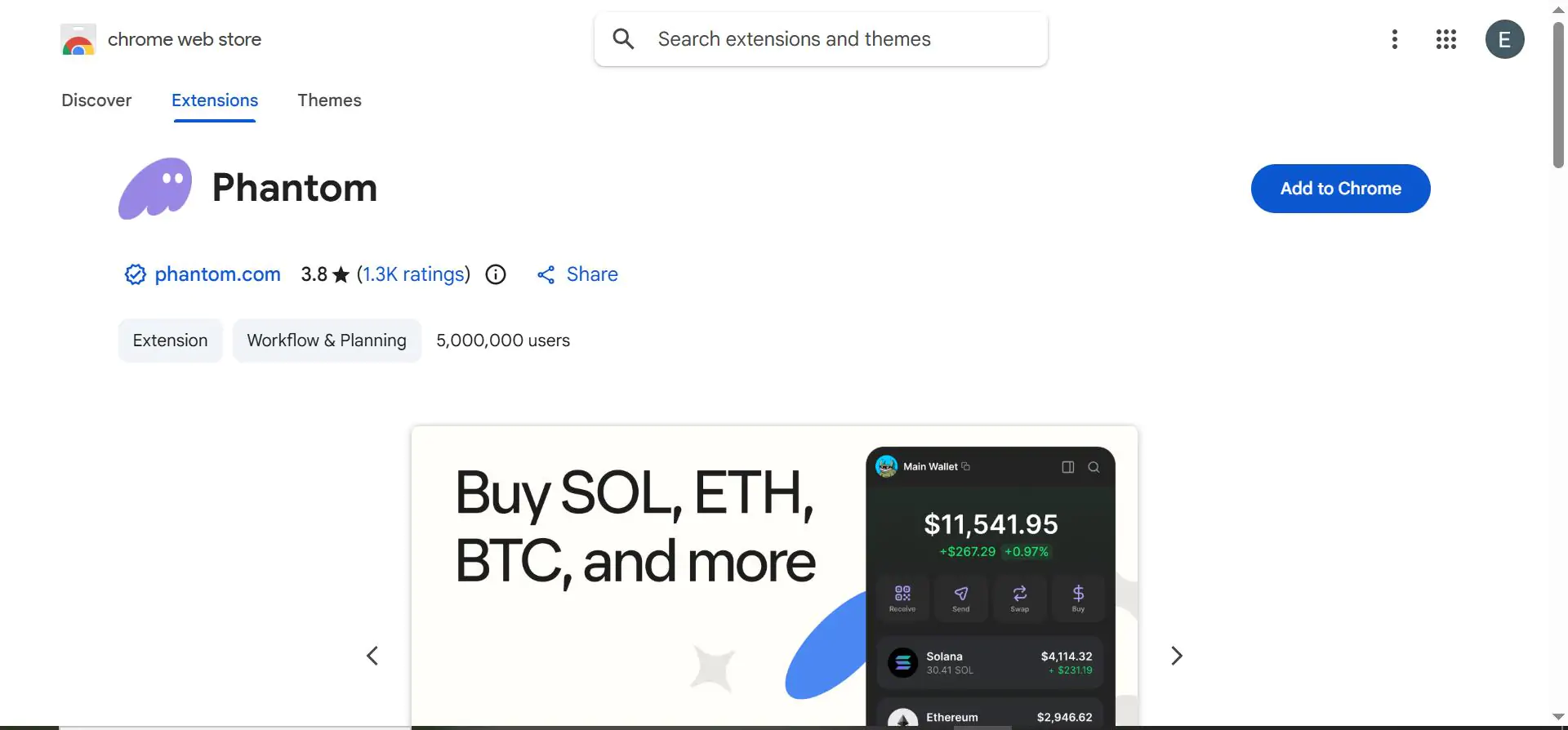
Step 3: Install only the Phantom browser extension on that profile.
Step 4: Log in to your Phantom wallet on that profile and make connections on that account.
Bottom Line
Phantom integrates well with DeFi, NFTs, and EVM-compatible dApps, so setting the wallet as the default on these platforms saves you the hassle of connecting to an unwanted wallet every time. Once you set Phantom Wallet as the default app wallet, Phantom becomes your primary browser wallet without affecting MetaMask or any other wallets you have installed. If you’ve set Phantom as your primary browser wallet, make sure your SRP is stored safely. You can follow our guide on how to find your Phantom Wallet SRP for the exact steps.
FAQs
1. Does setting Phantom as the default improve transaction speed?
No, the setting does not impact blockchain processing speed, but it reduces connection prompts and makes dApp interaction smoother.
2. Can I switch the default wallet back later?
Yes, you can disable Phantom’s default wallet setting or change the preferences to Always Ask to get a list of EVM wallets every time you want to connect to a dApp.
3. Will this setting affect non-EVM networks inside Phantom?
No, this configuration only impacts EVM-based dApp connections within the Phantom wallet extension on your browser.